Turn Windows event logs into an investigation handoff
Edit on GitHubCollect Windows errors with PSEventViewer, explain the snapshot in a Word and PDF brief, and keep the full messages in an editable Excel register.
A server has been reporting errors overnight, and someone else is taking over the investigation. You can send them a screenshot of Event Viewer, but it leaves out the messages they need to search, the computer that raised each event, and the scope of the collection. Sending hundreds of rows has the opposite problem: the important information gets lost in the list.
Let's give that person two things: a short Word/PDF brief that explains what was collected, and an Excel register with the full messages. PSEventViewer collects the events. PSWriteOffice turns the same objects into both documents, so you don't have to copy counts into Word or rebuild a spreadsheet by hand.
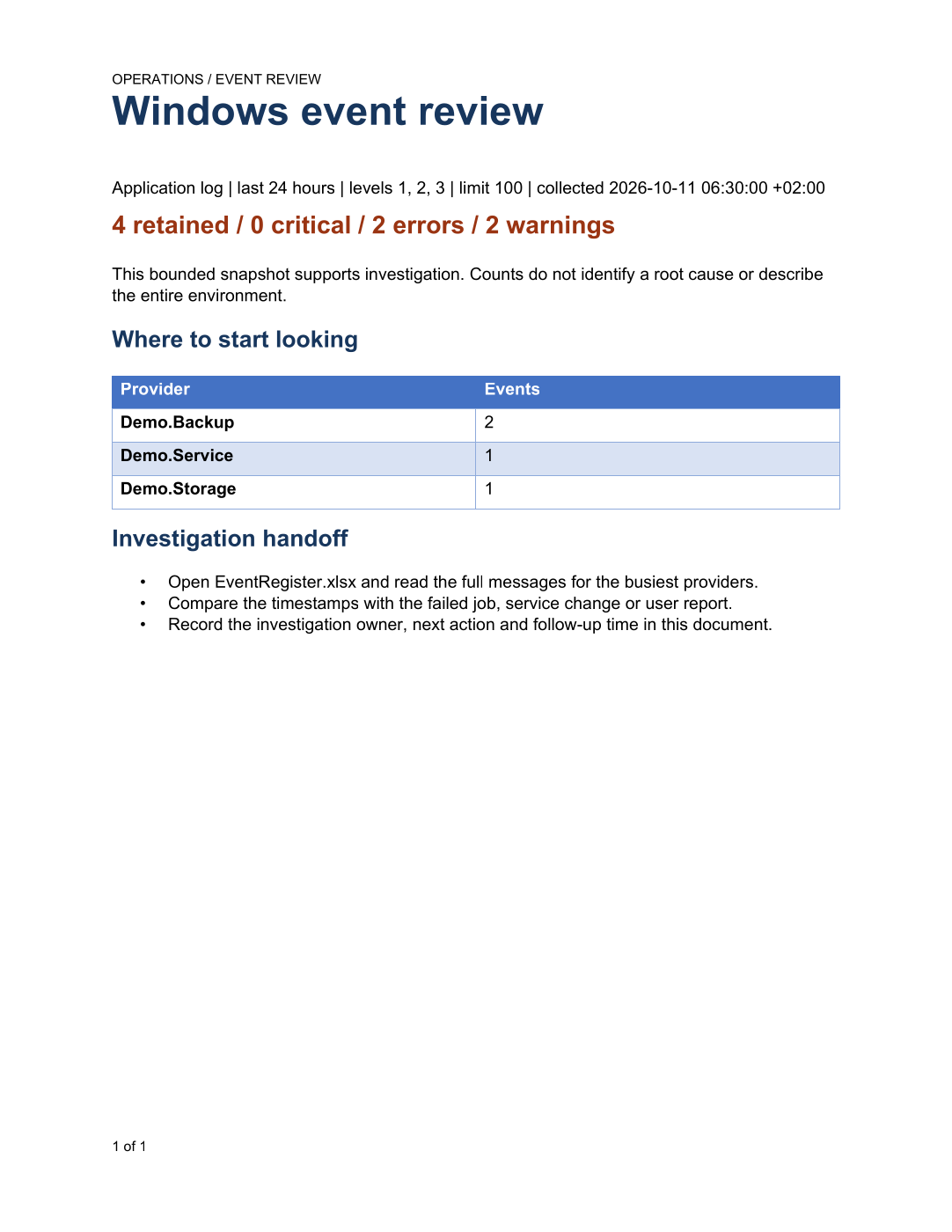
These Word, PDF and Excel examples use four illustrative records. The collection below reads your Windows Application log; its results depend on the machine and time you run it.
Start with a bounded collection
Install the modules once if you don't already have them:
Install-Module PSEventViewer, PSWriteOffice -Scope CurrentUser
Run the following blocks in the same PowerShell session on Windows. This collects at most 100 critical, error and warning events from the last 24 hours. It reads the log without clearing or changing it.
Import-Module PSEventViewer
Import-Module PSWriteOffice
$ErrorActionPreference = 'Stop'

$maxEvents = 100
$events = @(Get-EVXEvent -LogName Application -Level 1,2,3 `
    -TimePeriod Last24Hours -MaxEvents $maxEvents -ReadMode Message)
$collectedAt = Get-Date
The limit matters. A report with 100 records does not prove there were only 100 problems that day. Keep the limit and collection time in the brief, and increase the scope deliberately when the investigation needs it. Access to some logs requires additional permissions; deal with an access error before producing a report.
Keep the details that make an event useful
An event ID is only useful alongside its provider and message. Keep the source computer and log too, especially if you later collect from several machines. PSEventViewer can return a wrapper with a SourceEvent property; the first line below handles that shape as well as a direct event record.
$records = @($events | ForEach-Object {
    $event = if ($_.SourceEvent) { $_.SourceEvent } else { $_ }
    [pscustomobject]@{
        TimeCreated = [datetime] $event.TimeCreated
        EventId     = [int] $event.Id
        Provider    = [string] $event.ProviderName
        Level       = [int] $event.Level
        Computer    = [string] $event.MachineName
        Log         = [string] $event.LogName
        Message     = [string] $event.Message
    }
})

$providers = @($records | Group-Object Provider |
    Sort-Object Count -Descending | Select-Object -First 8 |
    Select-Object @{Name='Provider'; Expression={$_.Name}},
                  @{Name='Events'; Expression={$_.Count}})
$critical = @($records | Where-Object Level -EQ 1).Count
$errors = @($records | Where-Object Level -EQ 2).Count
$warnings = @($records | Where-Object Level -EQ 3).Count
Provider counts help the reader decide where to look first. They do not establish a root cause: repeated errors can be consequences of an earlier failure. The Excel register below keeps every collected record, even though the brief shows only the eight most frequent providers.
Write a brief someone can pick up and use
Create an output folder and describe the collection in words. Keeping the paths together also makes the report easy to add to an existing scheduled task.
$output = New-Item -ItemType Directory -Path ./Output/EventBrief -Force
$docx = Join-Path $output.FullName 'EventIncidentBrief.docx'
$pdf = Join-Path $output.FullName 'EventIncidentBrief.pdf'
$xlsx = Join-Path $output.FullName 'EventRegister.xlsx'
$scope = 'Application log | last 24 hours | levels 1, 2, 3 | limit {0} | collected {1}' -f `
    $maxEvents, $collectedAt.ToString('yyyy-MM-dd HH:mm:ss zzz')

New-OfficeWord -Path $docx {
    WordHeader { WordParagraph -Text 'OPERATIONS / EVENT REVIEW' }
    WordFooter { WordPageNumber -IncludeTotalPages }
    WordParagraph {
        WordParagraphStyle -SpacingAfterPoints 12 -KeepWithNext $true
        WordText 'Windows event review' -Bold -FontSize 26 -Color '17365D'
    }
    WordParagraph -Text $scope
    WordParagraph {
        WordParagraphStyle -SpacingBeforePoints 12 -SpacingAfterPoints 10
        WordText "$($records.Count) retained / $critical critical / $errors errors / $warnings warnings" `
            -Bold -FontSize 16 -Color '9A3412'
    }
    WordParagraph -Text 'This bounded snapshot supports investigation. Counts do not identify a root cause or describe the entire environment.'
    WordParagraph {
        WordParagraphStyle -SpacingBeforePoints 16 -SpacingAfterPoints 8 -KeepWithNext $true
        WordText 'Where to start looking' -Bold -FontSize 15 -Color '17365D'
    }
    if ($providers.Count) {
        $table = WordTable -InputObject $providers -Style GridTable4Accent1 `
            -Layout AutoFitToWindow -PassThru
        $table | Get-OfficeWordTableCell | ForEach-Object {
            $_.MarginTopCentimeters = 0.14
            $_.MarginBottomCentimeters = 0.14
        }
    } else {
        WordParagraph -Text 'No matching records were returned for this collection.'
    }
    WordParagraph {
        WordParagraphStyle -SpacingBeforePoints 16 -SpacingAfterPoints 8 -KeepWithNext $true
        WordText 'Investigation handoff' -Bold -FontSize 15 -Color '17365D'
    }
    WordList -Style Bulleted {
        WordListItem -Text 'Open EventRegister.xlsx and read the full messages for the busiest providers.'
        WordListItem -Text 'Compare the timestamps with the failed job, service change or user report.'
        WordListItem -Text 'Record the investigation owner, next action and follow-up time in this document.'
    }
}
Export-OfficeDocumentPdf -InputPath $docx -Path $pdf
The heading stays with the table, the cells have breathing room, and the next section starts with a deliberate gap. These small details make a generated document much easier to read. The Word file remains editable, so the investigator can add what they found before passing it on.
Keep the full messages in Excel
The brief should stay short. The workbook is where the reader filters by computer, provider or event ID and reads the messages. Write timestamps as dates, then apply a display format; writing them as formatted strings would make later sorting and calculations harder.
New-OfficeExcel -Path $xlsx {
    ExcelSheet 'Events' {
        ExcelGridlines -Hide
        ExcelCell -Address A1 -Value 'Windows event register'
        ExcelRow -Row 1 -Height 30 -Bold $true
        ExcelCell -Address A2 -Value $scope
        if ($records.Count) {
            ExcelTable -InputObject $records -StartRow 4 -TableName EventRegister `
                -TableStyle TableStyleMedium2
            for ($row = 5; $row -lt 5 + $records.Count; $row++) {
                ExcelCell -Row $row -Column 1 -Value $records[$row - 5].TimeCreated `
                    -NumberFormat 'yyyy-mm-dd hh:mm:ss.000'
                ExcelRow -Row $row -Height 36 -WrapText $true
            }
        } else {
            ExcelCell -Address A4 -Value 'No matching events were returned.'
        }
        ExcelColumn -Column 1 -Width 32
        ExcelColumn -Column 2 -Width 12
        ExcelColumn -Column 3 -Width 26
        ExcelColumn -Column 4 -Width 8
        ExcelColumn -Column 5 -Width 22
        ExcelColumn -Column 6 -Width 18
        ExcelColumn -Column 7 -Width 60
        ExcelFreeze -TopRows 4
    }
}
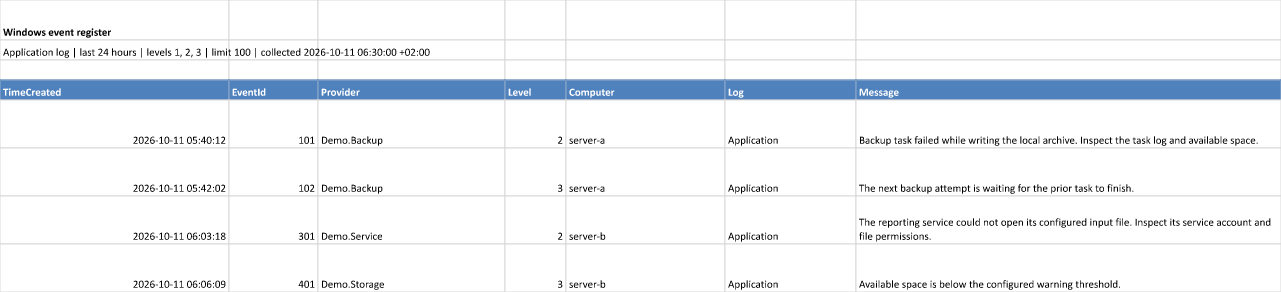
You'll find all three files in Output/EventBrief. Open the PDF for a quick read, use Word for the investigation notes, and use Excel to inspect the underlying records. Rows have a fixed height to keep the sheet manageable; expand a row or use the formula bar to read a long message in full.
For your own task, change the log and collection scope in the query and in $scope, then add the relevant job name or incident reference to the brief. Review event messages before sharing them: they can contain account names, paths and other operational details. When the handoff is ready, compose an email with the report attached.