Review a report email before sending it
Edit on GitHubAttach a generated PDF and Excel workbook with Mailozaurr, inspect a saved email, and send the reports through your SMTP service when ready.
The report looks right. Then the email goes out with yesterday's PDF, no workbook, or a subject that tells the recipient nothing. Report generation is only part of the job; the person receiving it needs the right files and a clear explanation of what to do with them.
Let's take the PDF and workbook from the supplier comparison and prepare a purchasing review email. Mailozaurr can save the message as an .eml file with the attachments embedded. You can open it in a mail client and inspect the recipients, text and files before adding delivery to an automated task.
Start with the files you want reviewed
Install Mailozaurr once if needed:
Install-Module Mailozaurr -Scope CurrentUser
Use your existing reports, or run the supplier comparison first. Change the two paths below if your reports are in another folder. Resolving them before composing the message catches a missing file before you reach the send step.
Import-Module Mailozaurr
$ErrorActionPreference = 'Stop'

$attachments = @(
    (Get-Item -LiteralPath ./Output/SupplierReview/SupplierReview.pdf).FullName
    (Get-Item -LiteralPath ./Output/SupplierReview/SupplierOffers.xlsx).FullName
)
The PDF is the quick read. The workbook lets the reviewer inspect the numbers. Sending both avoids a follow-up asking for the editable data, and the message can explain the price-versus-delivery choice instead of just saying "report attached."
Give the recipient a useful decision to make
The example uses reserved example.invalid addresses. Replace them with your own sender and reviewer when adapting it. This block creates a MIME message in memory; it doesn't connect to a mail server.
$from = 'Purchasing reports <[email protected]>'
$to = 'Equipment reviewer <[email protected]>'
$subject = 'Equipment quotes: review price and delivery before ordering'
$body = @'
Hello,

Please review the attached supplier comparison and editable price register.

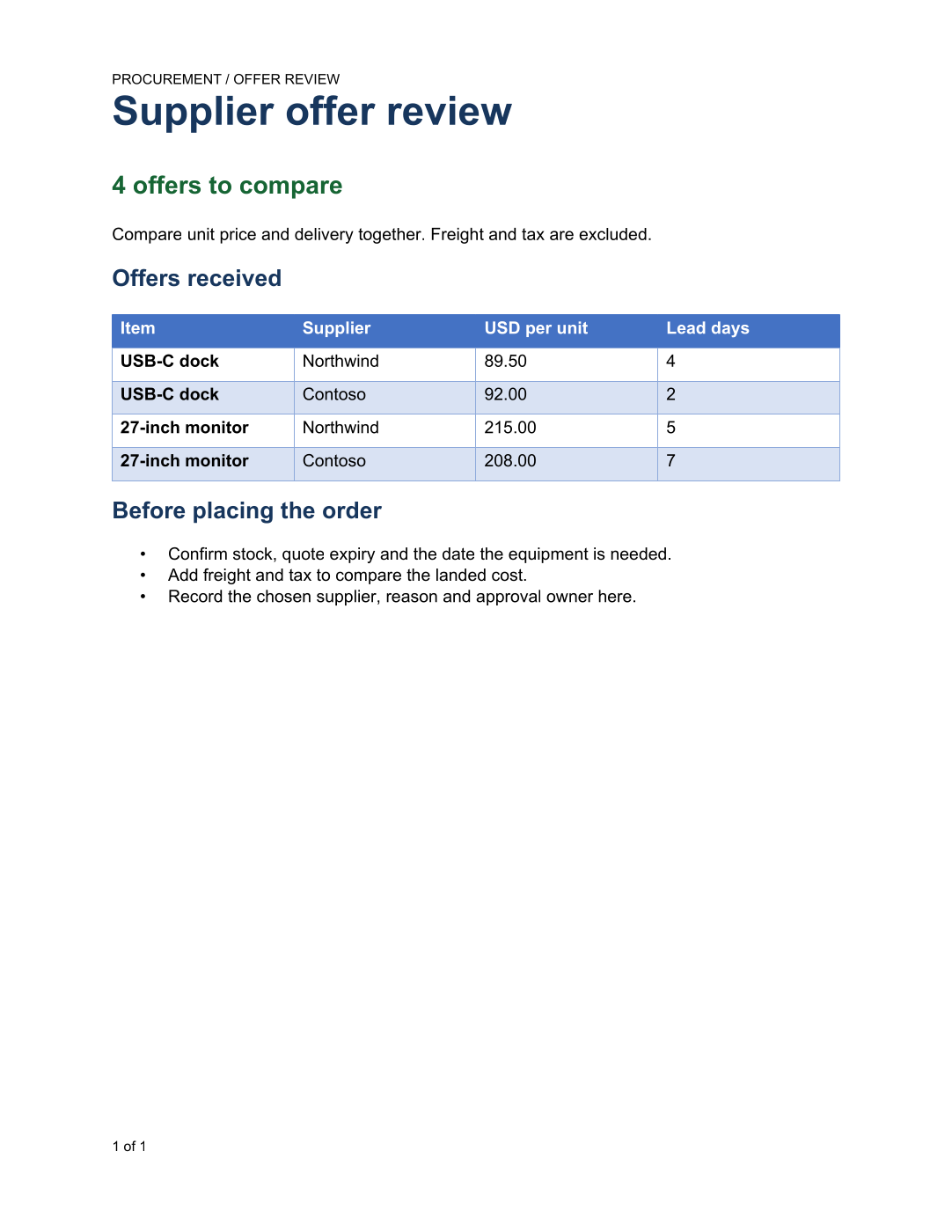
For the USB-C docks, Northwind is $2.50 cheaper per unit but takes two days longer.
For the monitors, Contoso saves $7 per unit but also adds two days to delivery.

Can you confirm the required delivery date and preferred supplier for each item?
Freight, tax, stock and quote expiry still need checking before we place the order.

Thank you.
'@

$messageId = '<{0}@example.invalid>' -f [guid]::NewGuid().ToString('N')
$message = New-MimeMessage -From $from -To $to -Subject $subject `
    -TextBody $body -AttachmentPath $attachments -Header @{'Message-Id'=$messageId}
That text belongs to the four offers in the supplier article. Update it when the inputs change; an old summary attached to a new report is just as confusing as an old attachment. In a scheduled report, build the summary from the same objects used to create the documents.
Inspect the complete email locally
Save the message and open it with a mail client that reads EML files:
$output = New-Item -ItemType Directory -Path ./Output/Mail -Force
$eml = Join-Path $output.FullName 'ReportReview.eml'
$message | Save-MimeMessage -Path $eml
Get-Item -LiteralPath $eml | Select-Object Name, Length
The saved message contains the actual attachment bytes, not links back to files on your machine. Check that the recipients are correct, open both attachments, and make sure the email asks the reviewer for the decision you need. Saving an EML does not deliver it or add it to a mail client's Drafts folder.
You can inspect the example email and its attached PDF. The email is built from the illustrative supplier offers, with the same PDF and workbook linked in that article.
Add delivery when the review is ready
For an SMTP service that supports STARTTLS on port 587, the send step uses the same files and message text. Replace the example server and addresses with your service settings. Run this block only when you intend to send; your mail service must permit the sender and authentication method you choose.
$mail = @{
    Server = 'smtp.example.invalid'
    Port = 587
    SecureSocketOptions = 'StartTls'
    Credential = Get-Credential
    From = $from
    To = $to
    Subject = $subject
    Text = $body
    Attachment = $attachments
}
Send-EmailMessage @mail
This composes an outgoing email from those values; it does not send the saved EML file itself. If your service uses another authentication method, follow the Mailozaurr email documentation for that setup.
The same pattern works for an event investigation handoff: attach the brief and register, name the incident in the subject, and ask for an owner and a follow-up time. Keep report creation and delivery as separate steps so you can inspect the output while developing the task.