Compare supplier quotes without retyping an HTML table
Edit on GitHubRead supplier offers with PSParseHTML, compare price and delivery, and create an editable Word review, PDF and numeric Excel workbook with PSWriteOffice.
You have a supplier price list in an HTML page and need to buy equipment for a team. Copying the table into Excel is easy enough once. Doing it again when a quote changes, fixing prices that became text, and copying the comparison into a Word document is where the time goes.
PSParseHTML can read the table directly. PSWriteOffice can use those rows to create an Excel workbook for the calculations and a Word/PDF review for the purchasing decision. Let's build that comparison, keeping both price and delivery time visible.
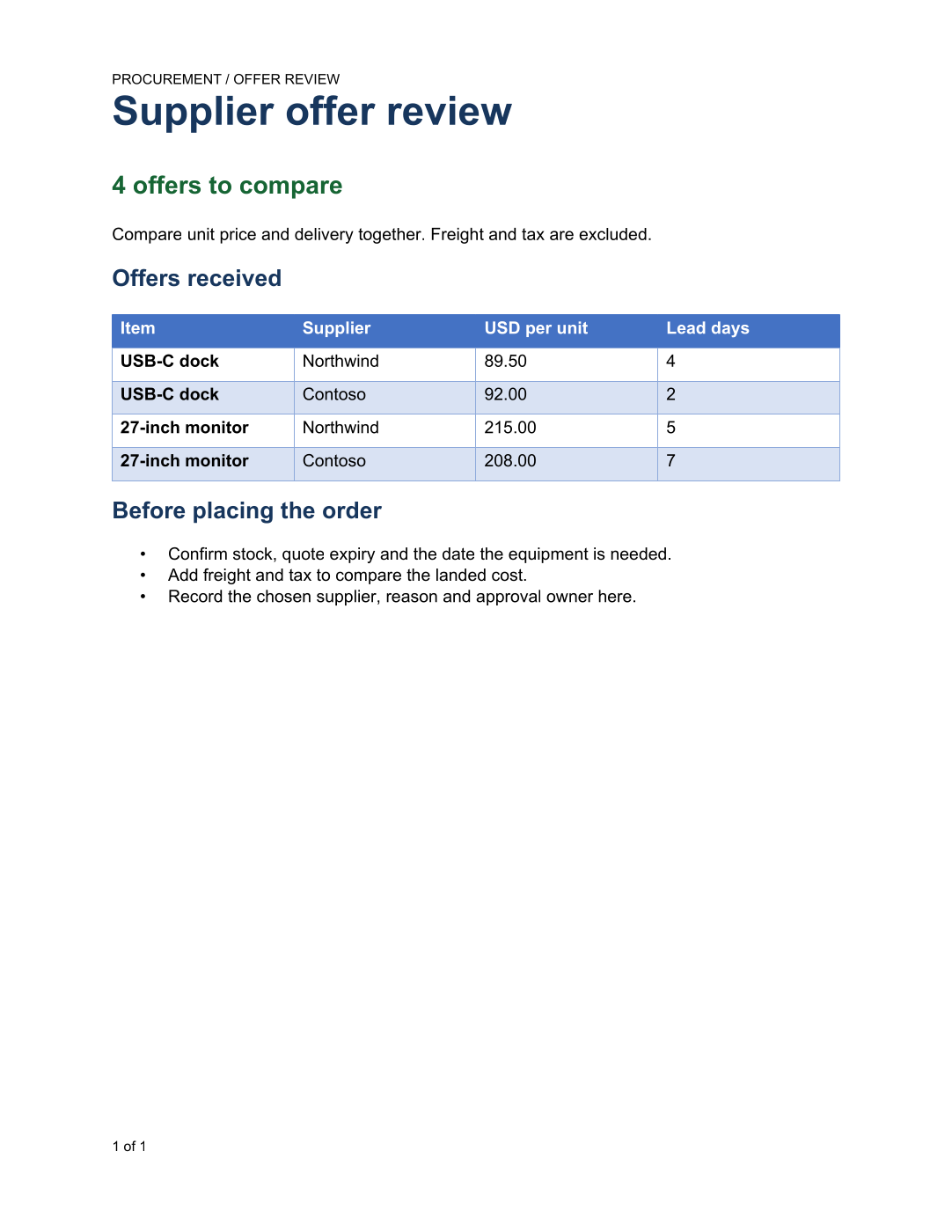
The example produces an editable Word review, a PDF, and a workbook with numeric prices. Run the blocks below in the same PowerShell session to create them yourself.
Read the offers once
Install the two modules once if needed:
Install-Module PSParseHTML, PSWriteOffice -Scope CurrentUser
Here's a small example price list. The names and prices are illustrative; use the HTML from your supplier's export when applying this to a real purchase. Giving the table an ID lets us select the offers without accidentally reading a navigation or layout table elsewhere on the page.
Import-Module PSParseHTML
Import-Module PSWriteOffice
$ErrorActionPreference = 'Stop'

$html = @'
<table id="offers">
  <tr><th>Item</th><th>Supplier</th><th>UnitPriceUsd</th><th>LeadDays</th></tr>
  <tr><td>USB-C dock</td><td>Northwind</td><td>89.50</td><td>4</td></tr>
  <tr><td>USB-C dock</td><td>Contoso</td><td>92.00</td><td>2</td></tr>
  <tr><td>27-inch monitor</td><td>Northwind</td><td>215.00</td><td>5</td></tr>
  <tr><td>27-inch monitor</td><td>Contoso</td><td>208.00</td><td>7</td></tr>
</table>
'@
$tables = @(ConvertFrom-HtmlTable -Content $html -TableId offers -IncludeMetadata)
if ($tables.Count -ne 1 -or @($tables[0].Data).Count -eq 0) {
    throw 'Expected one nonempty offers table.'
}
For a saved page, replace the ConvertFrom-HtmlTable call with ConvertFrom-HtmlTable -Path ./SupplierOffers.html -TableId offers -IncludeMetadata. Keep the four column names above, or map your supplier's headings to those names before the next step.
Make the prices usable in Excel
HTML cells contain text. Convert prices and lead times before creating the documents so that Excel can calculate with them. This price list uses USD, a decimal point, and no thousands separators. Reject a value you can't interpret instead of quietly turning it into zero.
$culture = [Globalization.CultureInfo]::InvariantCulture
$priceFormat = '0.00##########################'
$offers = @($tables[0].Data | ForEach-Object {
    if ([string]::IsNullOrWhiteSpace($_.Item) -or [string]::IsNullOrWhiteSpace($_.Supplier)) {
        throw 'An offer needs an item and supplier.'
    }
    $text = [string] $_.UnitPriceUsd
    $parts = $text.Split('.')
    $fraction = if ($parts.Count -eq 2) { $parts[1].TrimEnd('0') } else { '' }
    $digits = ($parts[0].TrimStart('0') + $fraction).TrimStart('0')
    [decimal] $price = 0
    if ($digits.Length -gt 15 -or $fraction.Length -gt 28 -or
        -not [decimal]::TryParse($text, [Globalization.NumberStyles]::AllowDecimalPoint,
            $culture, [ref] $price)) {
        throw "Unsupported USD price: $text"
    }
    $days = [int]::Parse($_.LeadDays, $culture)
    if ($price -lt 0 -or $days -lt 0) { throw 'Price and lead time must be nonnegative.' }
    [pscustomobject]@{
        Item = [string] $_.Item
        Supplier = [string] $_.Supplier
        UnitPriceUsd = $price
        LeadDays = $days
    }
})
$offers | Sort-Object Item, UnitPriceUsd | Format-Table
Now the comparison has something useful to say. Northwind's dock is $2.50 cheaper, but Contoso's arrives two days sooner. Contoso's monitor saves $7, but adds two days to the lead time. A cheapest-price sort alone would miss that tradeoff. Freight, tax, stock and the date you actually need the equipment still belong in the decision.
The precision check keeps the Word text and numeric Excel prices aligned, including sub-cent quotes. Excel numbers support at most 15 significant decimal digits; this example also rejects fractional precision beyond .NET decimal rather than allowing a tiny price to round to zero.
Create a comparison the buyer can edit
The document has a clear title, one compact comparison table and a place to record what needs checking. Format the price for the Word table while leaving the original $offers numeric for Excel.
$output = New-Item -ItemType Directory -Path ./Output/SupplierReview -Force
$docx = Join-Path $output.FullName 'SupplierReview.docx'
$pdf = Join-Path $output.FullName 'SupplierReview.pdf'
$xlsx = Join-Path $output.FullName 'SupplierOffers.xlsx'
$reviewRows = $offers | Select-Object Item, Supplier,
    @{Name='USD per unit'; Expression={$_.UnitPriceUsd.ToString($priceFormat, $culture)}},
    @{Name='Lead days'; Expression={$_.LeadDays}}

New-OfficeWord -Path $docx {
    WordHeader { WordParagraph -Text 'PROCUREMENT / OFFER REVIEW' }
    WordFooter { WordPageNumber -IncludeTotalPages }
    WordParagraph {
        WordParagraphStyle -SpacingAfterPoints 12 -KeepWithNext $true
        WordText 'Supplier offer review' -Bold -FontSize 26 -Color '17365D'
    }
    WordParagraph {
        WordParagraphStyle -SpacingAfterPoints 10
        WordText "$($offers.Count) offers to compare" -Bold -FontSize 16 -Color '166534'
    }
    WordParagraph -Text 'Compare unit price and delivery together. Freight and tax are excluded.'
    WordParagraph {
        WordParagraphStyle -SpacingBeforePoints 16 -SpacingAfterPoints 8 -KeepWithNext $true
        WordText 'Offers received' -Bold -FontSize 15 -Color '17365D'
    }
    $table = WordTable -InputObject $reviewRows -Style GridTable4Accent1 `
        -Layout AutoFitToWindow -PassThru
    $table | Get-OfficeWordTableCell | ForEach-Object {
        $_.MarginTopCentimeters = 0.14
        $_.MarginBottomCentimeters = 0.14
    }
    WordParagraph {
        WordParagraphStyle -SpacingBeforePoints 16 -SpacingAfterPoints 8 -KeepWithNext $true
        WordText 'Before placing the order' -Bold -FontSize 15 -Color '17365D'
    }
    WordList -Style Bulleted {
        WordListItem -Text 'Confirm stock, quote expiry and the date the equipment is needed.'
        WordListItem -Text 'Add freight and tax to compare the landed cost.'
        WordListItem -Text 'Record the chosen supplier, reason and approval owner here.'
    }
}
Export-OfficeDocumentPdf -InputPath $docx -Path $pdf
The cell padding makes the table readable without adding empty rows. SpacingBeforePoints separates the next heading from the table, and KeepWithNext prevents a heading from being stranded at the bottom of a page when you add more offers.
Leave the calculations in the workbook
Use the numeric objects for Excel. The table gives the buyer filters, while a frozen header and sensible column widths make it easier to work through a longer list. Each price keeps its supplied decimal places, with at least two displayed for these USD quotes.
New-OfficeExcel -Path $xlsx {
    ExcelSheet 'Offers' {
        ExcelGridlines -Hide
        ExcelCell -Address A1 -Value 'Supplier offers / USD per unit'
        ExcelRow -Row 1 -Height 30 -Bold $true
        ExcelCell -Address A2 -Value 'Freight and tax excluded. Compare delivery before ordering.'
        ExcelTable -InputObject $offers -StartRow 4 -TableName SupplierOffers `
            -TableStyle TableStyleMedium2
        for ($row = 5; $row -lt 5 + $offers.Count; $row++) {
            $price = $offers[$row - 5].UnitPriceUsd
            $places = $price.ToString($priceFormat, $culture).Split('.')[1].Length
            ExcelCell -Row $row -Column 3 -Value $price -NumberFormat ('0.' + ('0' * $places))
            ExcelRow -Row $row -Height 24
        }
        ExcelColumn -Column 1 -Width 25
        ExcelColumn -Column 2 -Width 22
        ExcelColumn -Column 3 -AutoFit
        ExcelColumn -Column 4 -Width 16
        ExcelFreeze -TopRows 4
    }
}
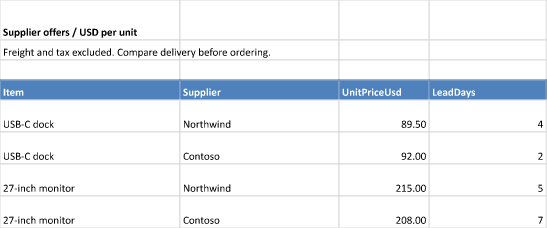
The three files are in Output/SupplierReview. Open the workbook to compare the offers, add the decision to the Word document, and export that edited document again when you want a final PDF. If the supplier sends an updated table, rerun the blocks to rebuild the comparison from the new data. Keep your completed approval notes separately, since rerunning writes new report files at these paths.
You can use the same approach for a software renewal or a parts list: change the input columns, keep the fields you calculate with numeric, and explain the actual decision in the document. To share the PDF and workbook together, continue with reviewing report attachments before sending email.