PowerPoint Presentations
Edit on GitHubOverview of OfficeIMO.PowerPoint for creating and editing PPTX and PowerPoint 97-2003 decks. Includes examples and API links.
OfficeIMO.PowerPoint lets you build and edit .pptx, .ppt, .pot, and .pps presentations from one higher-level object model. It is designed for generated decks, reporting pipelines, legacy presentation maintenance, demo content, and repeatable presentation output.
Good fit scenarios
- Create status decks, release reviews, and customer reports from application data.
- Generate training material or runbook slides as part of CI, build, or scheduled jobs.
- Reuse the same source data across Word, Excel, PowerPoint, and Reader pipelines.
- Produce presentations on servers, containers, or developer machines without PowerPoint installed.
Core building blocks
| Type | Purpose |
|---|---|
PowerPointPresentation | Root document for creating, loading, saving, and organizing slides |
PowerPointSlide | Individual slide surface for titles, text boxes, tables, charts, images, and notes |
PowerPointTextBox | Rich text container with bullets, formatted runs, margins, and auto-fit |
PowerPointTable | Strongly typed table surface with styles, column widths, row heights, and merged cells |
PowerPointChart | Chart host for series-driven visualizations inside a slide |
PowerPointNotes | Speaker notes attached to a slide |
PowerPointLayoutBox | Measurement helper for content regions, columns, and spacing |
PowerPointDesignBrief | Brand, purpose, palette, and design preferences used to generate alternatives |
PowerPointDeckPlan | Semantic sequence of designer slides that can be scored before rendering |
PowerPointTemplateInventory | Masters, layouts, placeholders, theme tokens, assets, footer content, and safe areas read from .pptx or .potx |
Designer decks
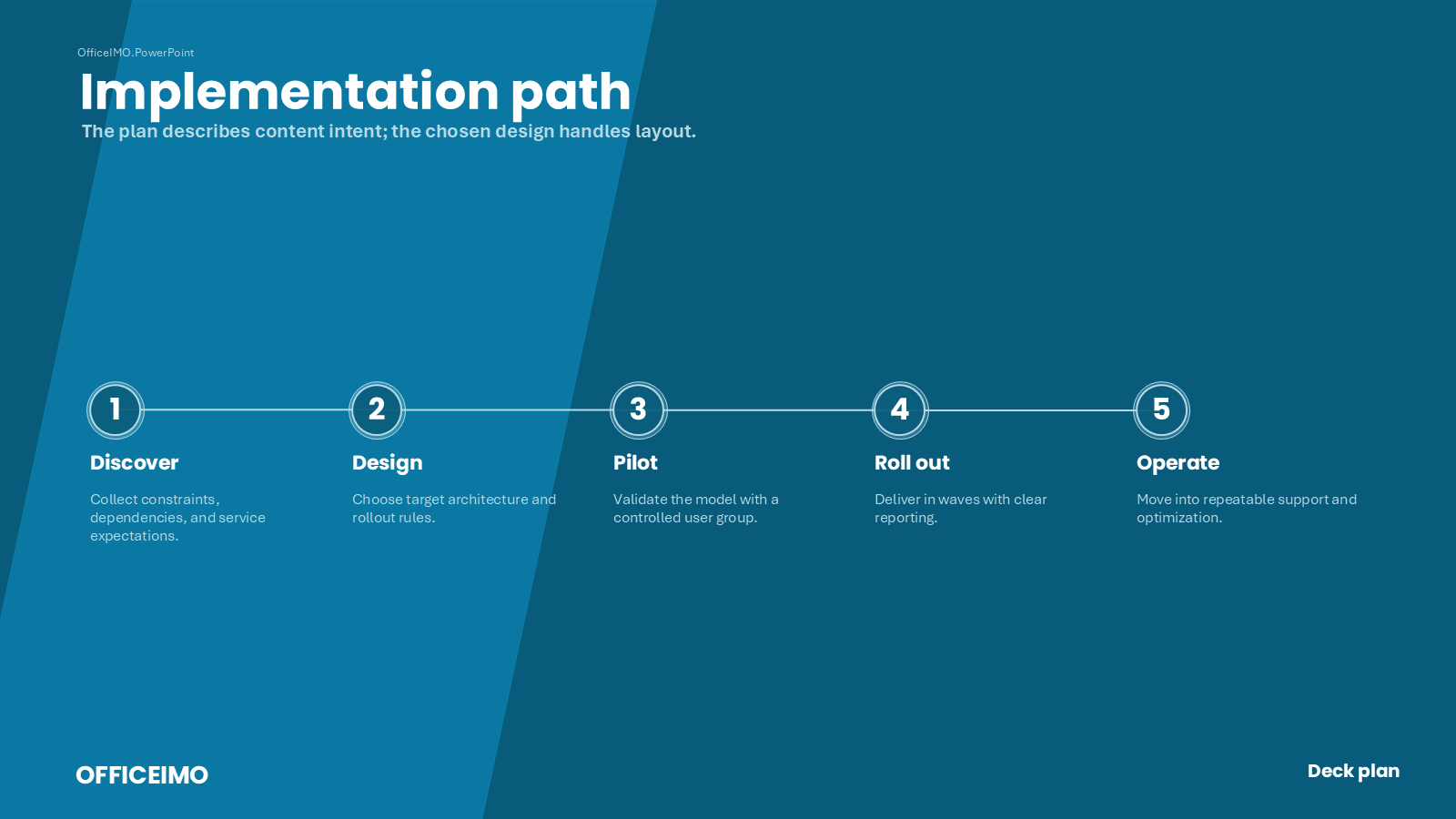
For decks that should look intentional without hand-positioning every object, use designer briefs and semantic deck plans. A brief can propose several visual directions from the same brand, while a deck plan lets the library score how well those directions fit the content before rendering editable slides.
PowerPointDesignBrief brief = PowerPointDesignBrief
    .FromBrand("#008C95", "client-demo", "technical rollout proposal")
    .WithIdentity("Client Theme", footerLeft: "CLIENT", footerRight: "Service deck")
    .WithVariety(PowerPointDesignVariety.Exploratory);

PowerPointDeckPlan plan = new PowerPointDeckPlan()
    .AddSection("Service proposal", "Generated from a semantic plan.")
    .AddProcess("Implementation path", "The selected design handles layout.",
        new[] {
            new PowerPointProcessStep("Discover", "Collect constraints."),
            new PowerPointProcessStep("Design", "Choose the target model."),
            new PowerPointProcessStep("Roll out", "Deliver in waves.")
        });

var best = brief.DescribeDeckPlanAlternatives(plan, 3)
    .OrderByDescending(alternative => alternative.ContentFitScore)
    .First();

using var presentation = PowerPointPresentation.Create("proposal.pptx");
presentation.SlideSize.SetPreset(PowerPointSlideSizePreset.Screen16x9);
PowerPointCompositionOptions composition = PowerPointCompositionOptions.FromBrief(brief);
composition.SelectBestAlternative = false;
composition.AlternativeIndex = best.Index;
presentation.Compose(plan, composition);
presentation.Save();
Designer Decks shows design recommendations, deck-plan scoring, raw composition primitives, and screenshots from runnable examples.
Quick start
using OfficeIMO.PowerPoint;

using var presentation = PowerPointPresentation.Create("status-update.pptx");
const double marginCm = 1.5;

var content = presentation.SlideSize.GetContentBoxCm(marginCm);
var slide = presentation.AddSlide();

var title = slide.AddTitleCm(
    "Weekly Status",
    content.LeftCm,
    content.TopCm,
    content.WidthCm,
    1.4);

if (title.Paragraphs.Count > 0)
{
    PowerPointTextStyle.Title.WithColor("1F4E79").Apply(title.Paragraphs[0]);
}

var agenda = slide.AddTextBoxCm(
    string.Empty,
    content.LeftCm,
    content.TopCm + 2.0,
    content.WidthCm,
    content.HeightCm - 2.0);

agenda.AddBullets(new[]
{
    "Deployment completed successfully",
    "Customer onboarding toolkit updated",
    "Performance metrics improved week over week"
});

presentation.Save();
Recommended workflow
- Create a presentation and get a content box from
SlideSizeso positioning stays consistent. - Add slides and establish structure with title, body, and supporting shapes or tables.
- Populate content from your domain data, not from hard-coded presentation markup.
- Add speaker notes, sections, theme tweaks, or layout helpers when the deck grows.
- Save the file and ship it as a build artifact, report attachment, or generated deliverable.
For report-sized content, use AddTableSlides(...) or semantic composition's continuation policy so source rows and semantic items continue instead of being clipped or dropped. Call InspectPreflight() before publishing to produce a deterministic layout report or fail at a selected severity.
PowerPoint 97-2003 files
Normal Load(...) routing detects binary .ppt, .pot, and .pps files and projects supported content into the same editable model. Saving back to a binary extension uses native or preservation-aware writing and blocks known loss by default:
using OfficeIMO.PowerPoint.LegacyPpt;

using var presentation = PowerPointPresentation.Load("legacy-deck.ppt");
presentation.ReplaceText("Draft", "Approved");

LegacyPptWritePreflightReport report = presentation.AnalyzeLegacyPptWrite();
if (!report.CanWrite) {
    throw new InvalidOperationException(string.Join(
        Environment.NewLine, report.Findings));
}
presentation.SaveCopy("approved.ppt");
Use LegacyPptCapabilityCatalog for the versioned import, authoring, round-trip, and PPTX-conversion contract. Tables, charts, and SmartArt require explicit acceptance when converted to static binary visuals; other unsafe conversions are blocked. Password-protected binary files use RC4 CryptoAPI for legacy compatibility.
Layout and content model
- Use
SlideSize.GetContentBoxCm(...)to reserve consistent margins around the live slide area. - Use
GetColumnsCm(...)when you want balanced two- or three-column compositions. - Work in centimeters, points, or EMUs through the built-in unit helpers depending on the scenario.
- Add titles, text boxes, tables, charts, images, and notes to the same
PowerPointSlidesurface.
Related workflows
- Pair
OfficeIMO.PowerPointwithOfficeIMO.Excelwhen chart/table data already exists in workbook form. - Use
OfficeIMO.Readerwhen the same pipeline later needs extraction or chunking from generated decks. - Use PSWriteOffice when you want the same presentation automation from PowerShell rather than C#.
Further reading
- Slides — Creating slides with text boxes, shapes, images, and charts.
- Designer Decks — Build visually structured decks with design briefs, recommendations, semantic plans, and screenshots.
- Templates and Brand Kits — Consume corporate
.pptxand.potxfiles through named layouts, semantic placeholders, and imported theme tokens. - Image export — Render slides for previews, review, and visual baselines.
- Capability Matrix — Understand native authoring, preservation, preview, and reporting boundaries.
- PSWriteOffice PowerPoint Cmdlets — Build decks from PowerShell with DSL aliases and cmdlets.
- OfficeIMO.PowerPoint product page — Package-level overview, install command, and positioning.