Designer Decks
Edit on GitHubBuild visually structured PowerPoint decks with design briefs, semantic deck plans, recommendations, and raw composition primitives.
Designer decks sit between fully manual slide placement and fixed templates. You describe brand, purpose, content, and preferences; OfficeIMO.PowerPoint can propose deterministic visual directions, explain why one direction fits, and render editable slides from semantic content.
Use this when a generated deck should feel designed without forcing every caller into the same layout, color mix, or slide rhythm.
Design brief recommendations
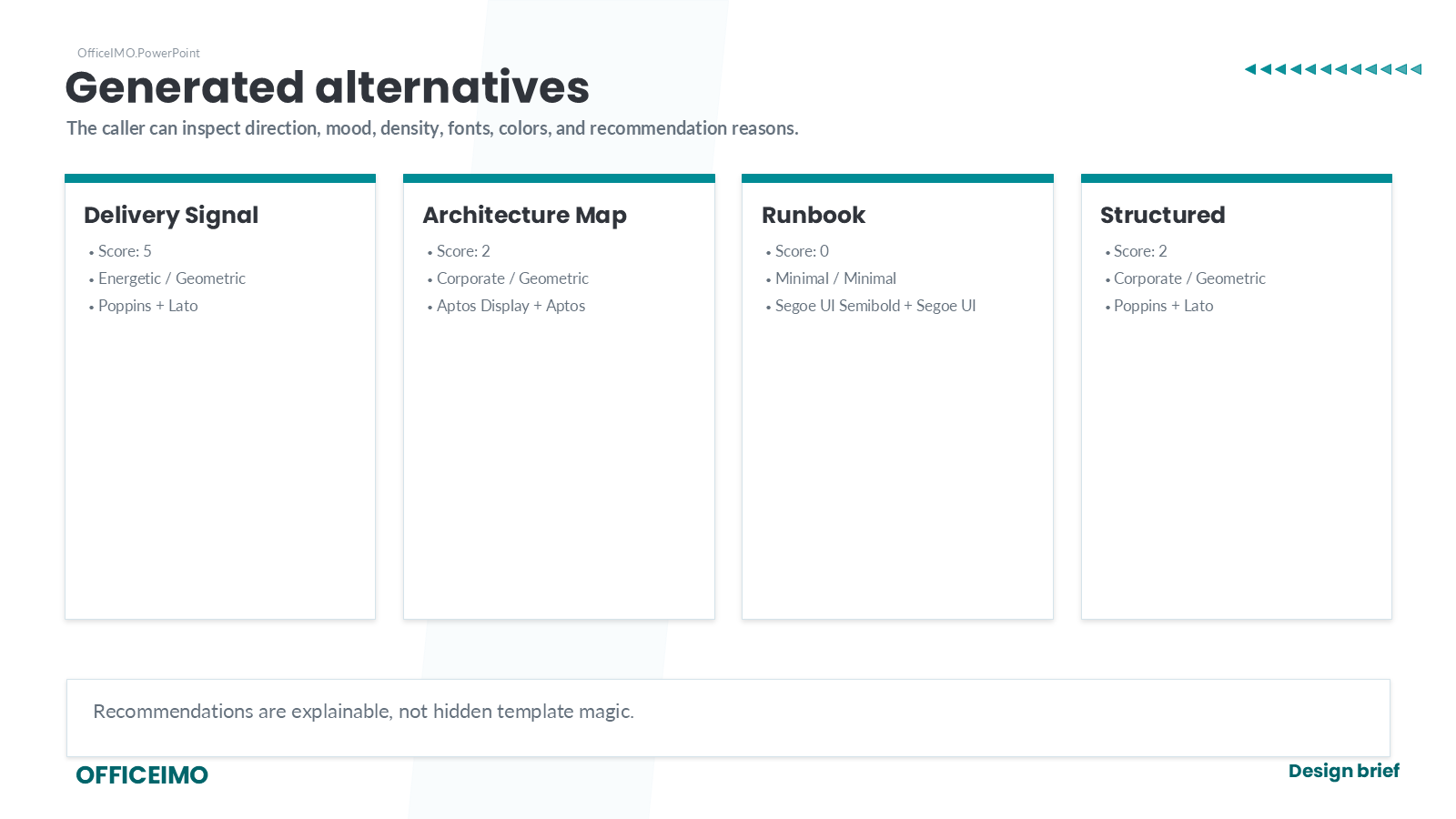
A PowerPointDesignBrief packages brand color, stable seed, purpose, identity, and creative direction. Start with a pack when you want a strong direction quickly, then override individual palette or layout knobs only where needed. Callers can inspect alternatives before choosing one.
PowerPointDesignBrief brief = PowerPointDesignBrief
    .FromBrand("#008C95", "design-brief-recommendations", "technical rollout proposal")
    .WithIdentity("Client Theme", eyebrow: "OfficeIMO.PowerPoint",
        footerLeft: "OFFICEIMO", footerRight: "Design brief")
    .WithCreativeDirectionPack(PowerPointCreativeDirectionPack.FieldProof)
    .WithPalette(surfaceColor: "#F6FAFC", panelBorderColor: "#D5E3EA");

var recommendations = brief.RecommendAlternatives(4);
var selected = recommendations
    .OrderByDescending(recommendation => recommendation.PreferenceScore)
    .ThenBy(recommendation => recommendation.Design.Index)
    .First();

using var presentation = PowerPointPresentation.Create("design-brief.pptx");
presentation.SlideSize.SetPreset(PowerPointSlideSizePreset.Screen16x9);

PowerPointCompositionOptions composition = PowerPointCompositionOptions.FromBrief(brief);
composition.SelectBestAlternative = false;
composition.AlternativeIndex = selected.Design.Index;
The recommendation object keeps the choice explainable: score, direction, mood, visual style, fonts, palette, and human-readable reasons are all available before slides are rendered.
Built-in packs include Boardroom, FieldProof, EditorialCaseStudy, TechnicalMap, and QuietAppendix. They combine recipe, palette style, layout strategy, variety, and ranking preferences without freezing exact slide coordinates.
Use PowerPointDesignBrief.DescribeCreativeDirectionPacks() to list pack names, descriptions, recipes, palette styles, layout strategies, and preferred moods before asking a user or workflow to choose one.
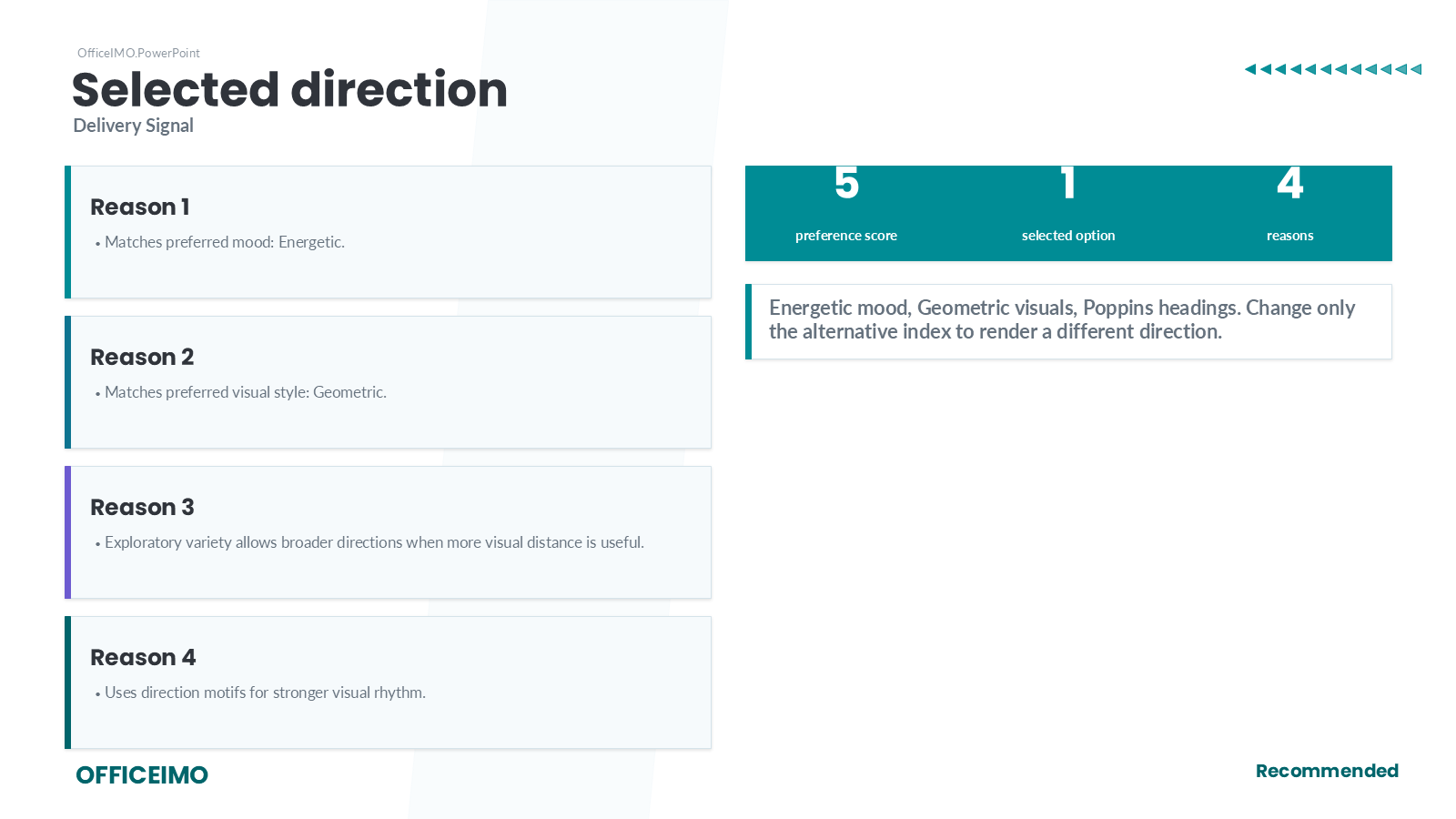
WithLayoutStrategy(...) lets a brief steer Auto slide variants without turning the deck into a fixed template. Use ContentFirst for content-fit defaults, DesignFirst for more seeded variation, Compact for denser business decks, or VisualFirst when visual proof and hero compositions should win when the content allows it.
Variation controls
The same PowerPointDeckPlan can be reused with several briefs. Change the layout strategy, palette style, and typography style to get a different rhythm without changing slide coordinates or duplicating every slide recipe. Small direction motifs can also vary per slide with PowerPointDirectionMotifStyle: Triangles, Chevrons, Dots, Bars, or None. Section titles can vary their emphasis with PowerPointTitleAccentStyle: Underline, SideRule, KickerRule, or None. Card grids can keep the same content while changing panel treatment with PowerPointCardSurfaceStyle: Elevated, Flat, Hairline, or AccentWash.
PowerPointDeckPlan plan = CreateReusablePlan();

foreach (PowerPointAutoLayoutStrategy strategy in new[] {
    PowerPointAutoLayoutStrategy.ContentFirst,
    PowerPointAutoLayoutStrategy.Compact,
    PowerPointAutoLayoutStrategy.VisualFirst
}) {
    PowerPointDesignBrief variant = PowerPointDesignBrief
        .FromBrand("#008C95", "layout-strategy-comparison", "service proposal")
        .WithPaletteStyle(PowerPointPaletteStyle.SplitComplementary)
        .WithTypographyStyle(PowerPointTypographyStyle.Auto)
        .WithLayoutStrategy(strategy);

    var preview = variant.DescribeDeckPlan(plan);
    PowerPointDeckPlan renderPlan = new PowerPointDeckPlan()
        .AddSection("Approach", "A calmer opening rhythm", "approach",
        configure: options => {
            options.DirectionMotifStyle = PowerPointDirectionMotifStyle.Dots;
            options.TitleAccentStyle = PowerPointTitleAccentStyle.KickerRule;
        })
        .AddCardGrid("Scope", "Same cards, quieter surface.",
        new[] {
            new PowerPointCardContent("Deployments", new[] { "Intune", "Autopilot" }),
            new PowerPointCardContent("Care", new[] { "Monitoring", "Reporting" })
        },
        configure: options => options.SurfaceStyle = PowerPointCardSurfaceStyle.Hairline);
    foreach (PowerPointDeckPlanSlide slide in plan.Slides) renderPlan.Add(slide);
    presentation.Compose(renderPlan, PowerPointCompositionOptions.FromBrief(variant));
}
Run the comparison deck from the examples project:
dotnet run --project OfficeIMO.Examples/OfficeIMO.Examples.csproj -f net10.0 -- --powerpoint-layout-strategy
Semantic deck plan
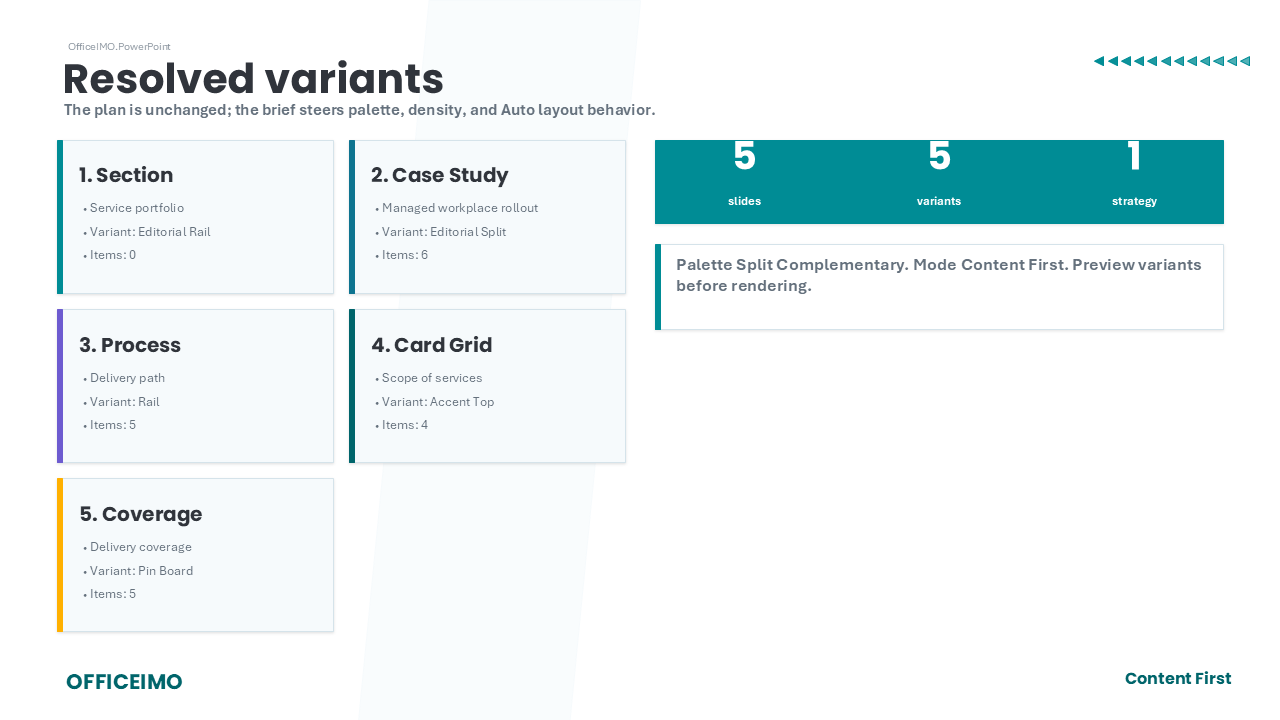
A PowerPointDeckPlan describes the story: section, case study, process, cards, coverage, capability, or custom slides. The plan can be scored across design alternatives before rendering.
PowerPointDeckPlan plan = new PowerPointDeckPlan()
    .AddSection("Service proposal",
        "A semantic plan keeps the story reusable while the design can change.")
    .AddCaseStudy("Managed workplace rollout",
        new[] {
            new PowerPointCaseStudySection("Client", "A distributed organization needed a clear service story."),
            new PowerPointCaseStudySection("Challenge", "Many locations and mixed hardware made delivery difficult."),
            new PowerPointCaseStudySection("Solution", "Standardized onboarding, monitoring, and operating roles."),
            new PowerPointCaseStudySection("Result", "Outcomes, metrics, and visual emphasis stay editable.")
        },
        new[] {
            new PowerPointMetric("18", "sites"),
            new PowerPointMetric("420", "devices")
        })
    .AddProcess("Implementation path",
        "The plan describes content intent; the chosen design handles layout.",
        new[] {
            new PowerPointProcessStep("Discover", "Collect constraints and service expectations."),
            new PowerPointProcessStep("Design", "Choose target architecture and rollout rules."),
            new PowerPointProcessStep("Pilot", "Validate the model with a controlled user group."),
            new PowerPointProcessStep("Roll out", "Deliver in waves with clear reporting."),
            new PowerPointProcessStep("Operate", "Move into repeatable support and optimization.")
        },
        configure: options => {
            options.Variant = PowerPointProcessLayoutVariant.Rail;
            options.ConnectorStyle = PowerPointProcessConnectorStyle.StepDots;
        });

var alternatives = brief.DescribeDeckPlanAlternatives(plan, 4);
var selectedPlan = brief.RecommendDeckPlanAlternative(plan, 4);

PowerPointCompositionOptions composition = PowerPointCompositionOptions.FromBrief(brief);
composition.AlternativeCount = 4;
PowerPointCompositionResult result = presentation.Compose(plan, composition);
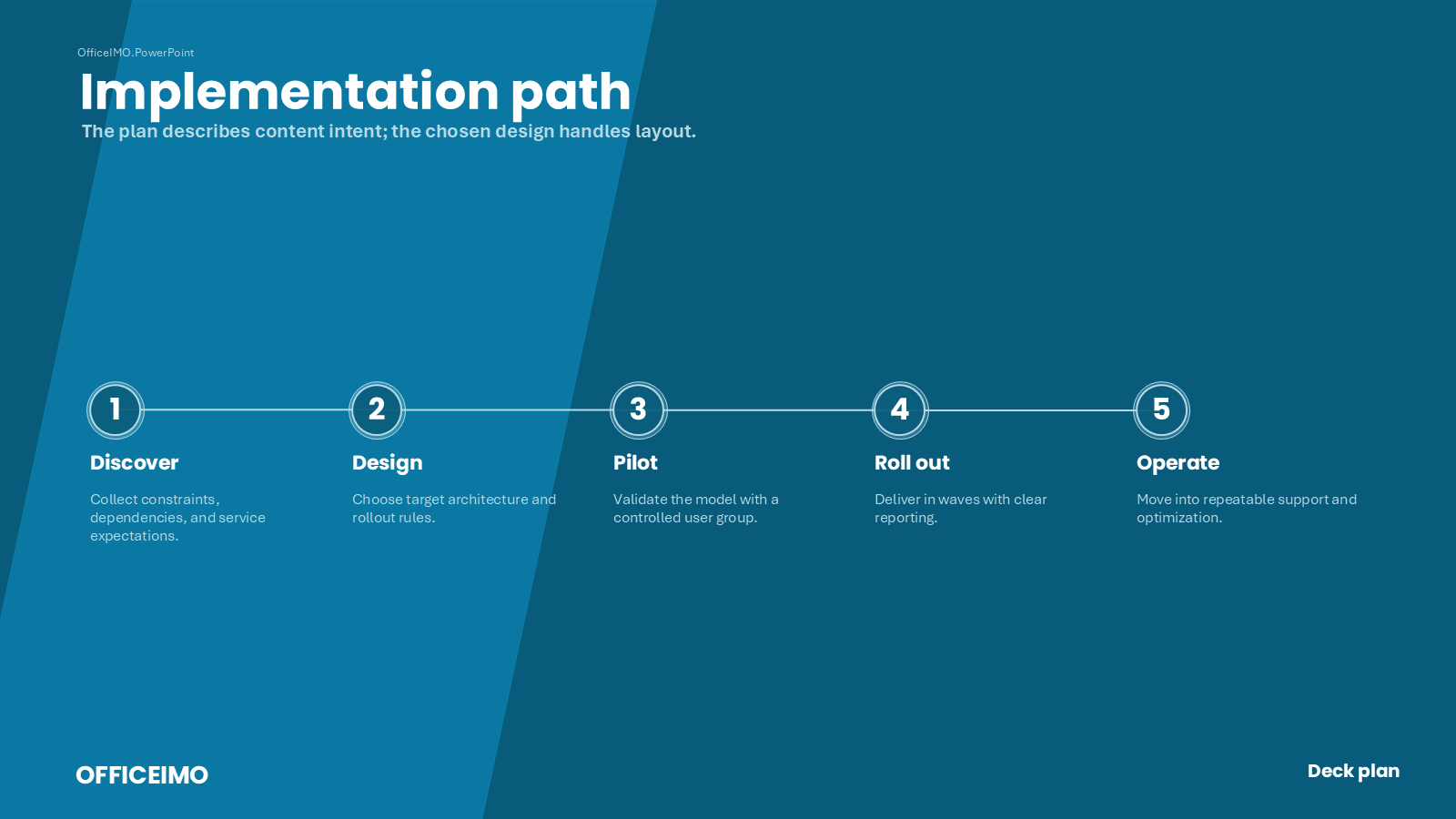
Rail process slides can keep the same semantic steps while switching connector treatment. Use ContinuousRail for a quiet line, SegmentArrows for compact directional flow, StepDots for a softer editorial rhythm, or None when the numbered nodes should stand alone.
Semantic story families
The plan also includes presentation-specific story families for the parts of a deck that usually need hand-built layouts:
| Family | Variants | Native output |
|---|---|---|
| Executive summary | MetricLead, DecisionBrief | Text, metric strips, and cards |
| Chart story | ChartHero, InsightRail | Editable chart, caption, source, and alt text |
| Comparison | SideBySide, DecisionMatrix | Cards or editable table |
| Screenshot story | HeroAnnotated, SplitNarrative | Picture with focal crop, alt text, caption, provenance, and annotations |
| Appendix table | FullWidth, NotesRail | Editable table with deterministic continuation |
| Architecture | Layered, HubSpoke | Editable shapes, labels, and connectors |
| Closing | Statement, ActionPanel | Statement or explicit next-action composition |
Auto remains deterministic under the design seed and content shape. A caller can force a variant when a specific narrative treatment is required.
var plan = new PowerPointDeckPlan()
    .AddExecutiveSummary("Executive summary", null,
        new PowerPointExecutiveSummaryContent(metrics, decisionPoints,
            "One sentence that frames the decision."))
    .AddChartStory("Adoption", "The chart remains editable", chartStory,
        configure: options => options.Variant = PowerPointChartStoryLayoutVariant.InsightRail)
    .AddComparison("Implementation choice", null, options)
    .AddScreenshotStory("Product proof", null, semanticImage, narrative)
    .AddArchitecture("Platform", null, architecture)
    .AddAppendixTable("Evidence", null, evidenceTable)
    .AddClosing("Next decision", new PowerPointClosingContent(
        "Beautiful automation is trustworthy automation.", "Approve the pilot"));

PowerPointCompositionResult result = presentation.Compose(plan,
    PowerPointCompositionOptions.FromBrief(brief));
PowerPointDeckRhythmReport rhythm = result.Plan.InspectRhythm(result.Design);
The rhythm report uses stable codes such as Rhythm.RepeatedKind, Rhythm.RepeatedVariant, Rhythm.DenseStreak, Rhythm.SameToneStreak, Rhythm.FlatTone, Rhythm.LongSection, and Rhythm.MissingClosing. It is an advisory composition check; InspectPreflight() remains the artifact-level gate for clipping, bounds, collisions, and missing image relationships.
When a deck already contains slides, preview through the presentation so fallback seeds line up with the render path:
PowerPointCompositionOptions composition = PowerPointCompositionOptions.FromBrief(brief);
composition.AlternativeCount = 4;
var livePreview = presentation.PreviewComposition(plan, composition);
presentation.Compose(plan, composition);
Raw composition still matters
Semantic plans are not meant to remove control. Use PowerPointDeckPlan.AddCustom(...) when a slide needs custom structure, then reuse the same design primitives for title, cards, metric strips, callout bands, coverage maps, and visual frames.
Named composition presets sit between manual coordinates and full semantic slides. UsePreset(...) returns reusable regions such as Primary, Visual, Metrics, and Grid, so a custom slide can keep designed spacing without becoming a hardcoded template.
Variants keep those presets from becoming one fixed look. Use Standard for the baseline arrangement, Mirrored or VisualLead when the visual should move, EvidenceLead when metrics should lead, or Auto when the design intent and seed should pick a stable variation.
Surface variants keep repeated regions from looking identical. A visual frame can use Dashboard, Collage, Diagram, DeviceMockup, or ProofBoard treatments, and a metric strip can use a SolidBand, SeparatedTiles, or Underlined treatment.
Semantic slides expose the same visual-frame choice through options, so screenshot-heavy and proof-heavy slides do not need a custom layout just to avoid the default placeholder:
plan.AddCapability("Evidence", "Choose visual support without hand-drawing a frame.",
    new[] {
        new PowerPointCapabilitySection("Proof", "Editable evidence area.", new[] { "Screenshot", "Certificate" })
    },
    configure: options => options.VisualFrameVariant = PowerPointVisualFrameVariant.DeviceMockup);
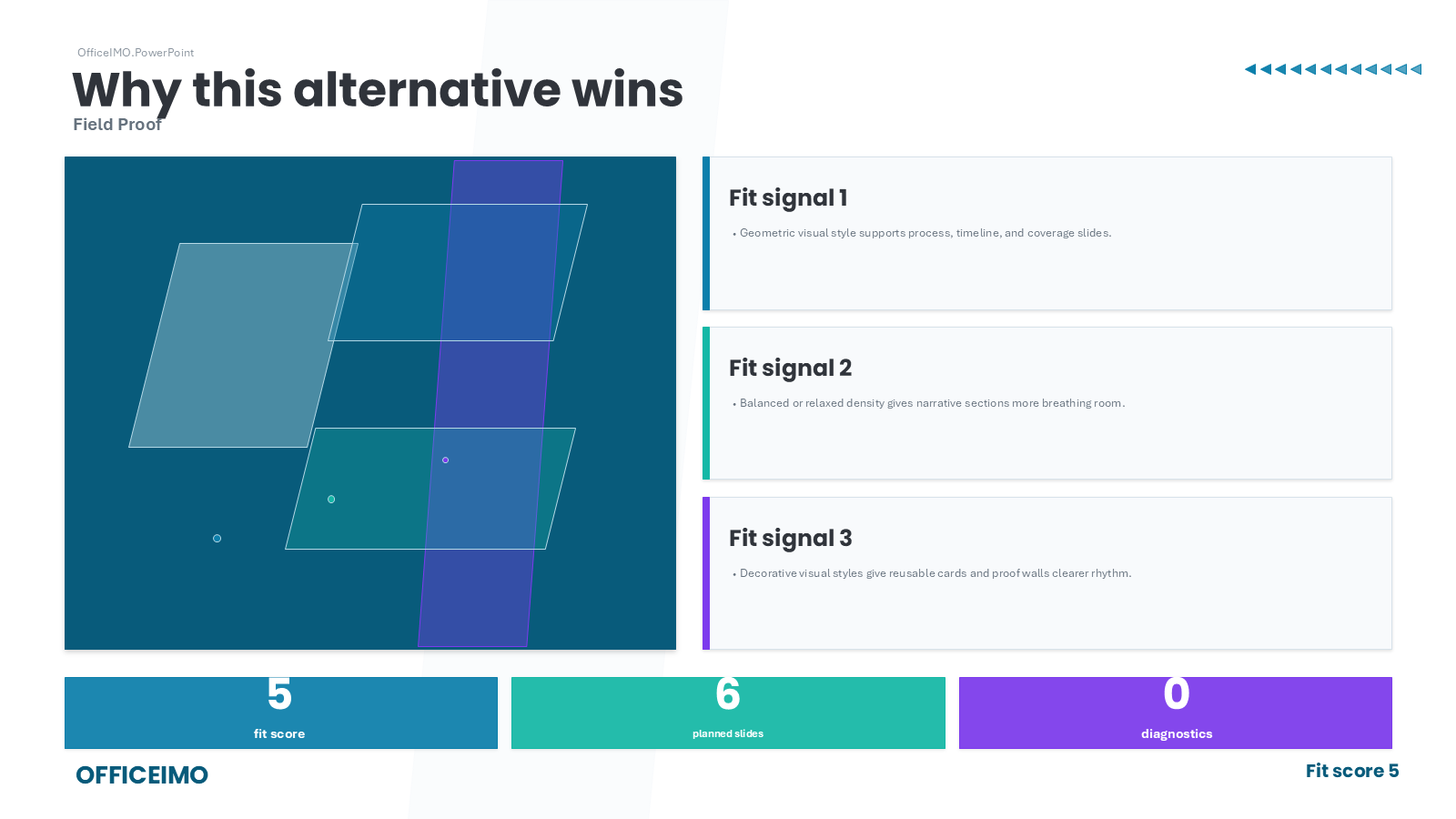
plan.AddCustom("Why this alternative wins", composer => {
    composer.AddTitle("Why this alternative wins", selectedPlan.Design.DirectionName);

    PowerPointCompositionLayout layout = composer.UsePreset(PowerPointCompositionPreset.MetricStory,
        PowerPointCompositionVariant.VisualLead);
    composer.AddCardGrid(
        selectedPlan.ContentFitReasons.Take(4)
            .Select((reason, index) => new PowerPointCardContent(
                "Fit signal " + (index + 1), new[] { reason })),
        layout.Primary);

    composer.AddVisualFrame(layout.Visual, PowerPointVisualFrameVariant.ProofBoard);

    composer.AddMetricStrip(new[] {
        new PowerPointMetric(selectedPlan.ContentFitScore.ToString(), "fit score"),
        new PowerPointMetric(selectedPlan.Slides.Count.ToString(), "planned slides"),
        new PowerPointMetric(selectedPlan.Diagnostics.Count.ToString(), "diagnostics")
    }, layout.Metrics, PowerPointMetricStripVariant.SeparatedTiles);
}, "advisor-summary");

presentation.Compose(plan, PowerPointCompositionOptions.FromBrief(brief));
Runnable examples
The runnable examples generate the same decks used for the screenshots above.
dotnet run --project OfficeIMO.Examples/OfficeIMO.Examples.csproj -f net10.0 -- --powerpoint-design-brief
dotnet run --project OfficeIMO.Examples/OfficeIMO.Examples.csproj -f net10.0 -- --powerpoint-deck-plan
dotnet run --project OfficeIMO.Examples/OfficeIMO.Examples.csproj -f net10.0 -- --powerpoint-e2e
Use --powerpoint to run the full PowerPoint example set and validate every generated deck.
Choosing the right level
| Level | Use it when | Main API |
|---|---|---|
| Raw slide | Exact placement or low-level Open XML behavior matters | PowerPointSlide |
| Composer presets | One slide needs custom structure but should not start from manual coordinates | PowerPointCompositionPreset |
| Custom-plan context | One slide needs custom structure but should share deck styling | PowerPointSlideCompositionContext through PowerPointDeckPlan.AddCustom(...) |
| Semantic slide | The content has a known shape such as process, case study, or card grid | PowerPointDeckPlan |
| Deck composition | The caller wants to render the whole story with one fitting design | PowerPointPresentation.Compose(...) |
| Design brief | Brand, purpose, palette, and preferences should travel together | PowerPointDesignBrief |
| Auto layout strategy | Auto variants should lean toward content fit, seeded variation, compactness, or visual proof | PowerPointAutoLayoutStrategy |
API used on this page
PowerPointDeckPlanPowerPointDesignBriefPowerPointCompositionOptionsPowerPointAutoLayoutStrategyPowerPointMetricPowerPointProcessStepPowerPointCardSurfaceStylePowerPointCaseStudySectionPowerPointCompositionPresetPowerPointDirectionMotifStylePowerPointPresentationPowerPointTitleAccentStylePowerPointCardContentPowerPointSlidePowerPointSlideCompositionContextPowerPointCompositionResultPowerPointVisualFrameVariantPowerPointCapabilitySectionPowerPointChartStoryLayoutVariantPowerPointClosingContentPowerPointCompositionLayoutPowerPointCompositionVariantPowerPointCreativeDirectionPackPowerPointDeckPlanSlidePowerPointDeckRhythmReportPowerPointExecutiveSummaryContentPowerPointMetricStripVariant