Excel · C# walkthrough
Pricing with named ranges
Make a small pricing calculation understandable to the next person who edits it. Named ranges give the formula meaningful terms and make the assumptions visible in the worksheet.
Opens the generated download in a local browser tool. The C# example below creates the document.
- Start with
- Quantity, unit price, and discount rate
- Generate
- XLSX
How it works
Name the inputs
Create workbook-scoped ranges for Quantity, UnitPrice, and DiscountRate, each pointing at its input cell.
Write a readable formula
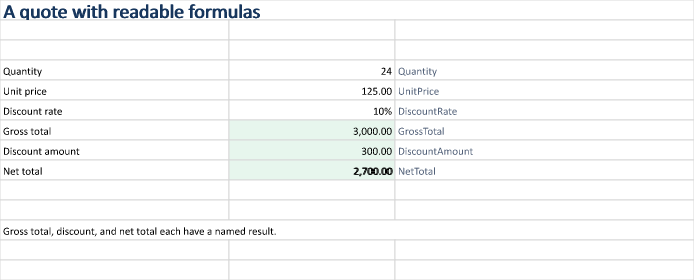
Use named formulas for gross total, discount amount, and net total. Each step has its own cell so a reader can inspect the calculation.
Format and inspect the result
Evaluate the formula, apply numeric and percentage formats, and render the quote. The sample net total is 2,700.
The C# source
The example below shows the document API and layout used for this report. Follow the Excel guide for package setup in your own project.
using System.IO;
using OfficeIMO.Drawing;
using OfficeIMO.Excel;

namespace OfficeIMO.Examples.Showcase.Workflows;

/// <summary>Uses named ranges to keep a small pricing model readable as the sheet evolves.</summary>
internal static class NamedRangePricing {
    internal static void Create(string folder) {
        using ExcelDocument document = ExcelDocument.Create(Path.Combine(folder, "example.xlsx"));
        ExcelSheet sheet = document.AddSheet("Quote");
        sheet.SetColumnWidth(1, ExcelColumnWidth.Characters(32));
        sheet.SetColumnWidth(2, ExcelColumnWidth.Characters(23));
        sheet.SetColumnWidth(3, ExcelColumnWidth.Characters(42));
        sheet.Range("A1:C1").Merge();
        sheet.Cell(1, 1).SetValue("A quote with readable formulas");
        sheet.Cell(1, 1).SetFontSize(global::OfficeIMO.OfficeLength.Points(20));
        sheet.Cell(1, 1).SetBold(true);
        sheet.Cell(1, 1).SetFontColor("17365D");

        string[] labels = { "Quantity", "Unit price", "Discount rate", "Gross total", "Discount amount", "Net total" };
        string[] names = { "Quantity", "UnitPrice", "DiscountRate", "GrossTotal", "DiscountAmount", "NetTotal" };
        for (int index = 0; index < labels.Length; index++) {
            int row = index + 4;
            sheet.Cell(row, 1).SetValue(labels[index]);
            sheet.Cell(row, 3).SetValue(names[index]);
            sheet.Cell(row, 3).SetFontColor("526179");
            document.SetNamedRange(names[index], $"'Quote'!B{row}", save: false);
        }
        sheet.Cell(4, 2).SetValue(24).SetNumberFormat("#,##0");
        sheet.Cell(5, 2).SetValue(125).SetNumberFormat("#,##0.00");
        sheet.Cell(6, 2).SetValue(0.10).SetNumberFormat("0%");
        sheet.Cell(7, 2).SetFormula("Quantity*UnitPrice");
        sheet.Cell(8, 2).SetFormula("GrossTotal*DiscountRate");
        sheet.Cell(9, 2).SetFormula("GrossTotal-DiscountAmount");
        for (int row = 7; row <= 9; row++) {
            sheet.Cell(row, 2).SetNumberFormat("#,##0.00");
            sheet.Cell(row, 2).SetFillColor("E7F6ED");
        }
        sheet.Cell(9, 2).SetBold(true);
        sheet.Range("A12:C12").Merge();
        sheet.Cell(12, 1).SetValue("Gross total, discount, and net total each have a named result.");
        document.Calculate();
        sheet.Range("A1:C14").ExportImage(OfficeImageExportFormat.Png)
            .Save(Path.Combine(folder, "preview.png"), OfficeImageExportFileConflictPolicy.Replace);
        document.Save();
    }
}
API used in this example
Use this in your project
Use names from your business vocabulary and keep their definitions near the inputs. Extend the model with separate named assumptions when the calculation grows.
The Excel guide explains package setup and related document APIs.
Documents and scope
What the preview shows
The linked C# example generates this file. The runner reopens and validates the XLSX. The image is a native rendering of the specified worksheet range.
What to keep in mind
The sample demonstrates one workbook-level calculation. It does not implement a pricing policy, tax engine, or negotiated-price approval process. Each calculation step uses the native formula engine supported by this example.