Excel · C# walkthrough
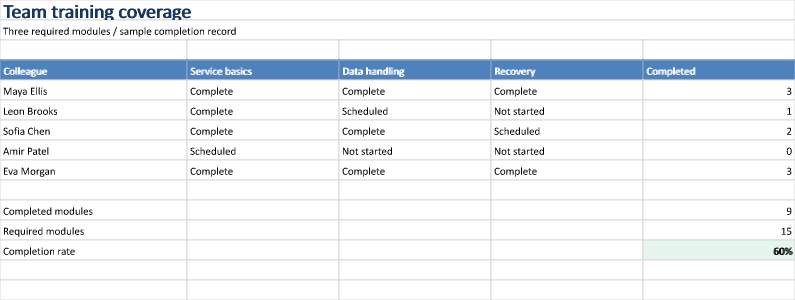
Training coverage matrix
See who has completed the required modules and where follow-up is needed without maintaining a separate summary by hand.
Opens the generated download in a local browser tool. The C# example below creates the document.
- Start with
- People, required modules and completion states
- Generate
- XLSX
How it works
Build the matrix
Place colleagues in rows and required modules in columns, with a dedicated calculated total.
Constrain the states
Add a validation list with Not started, Scheduled and Complete so entries stay consistent.
Count completion
Use COUNTIF for each person, SUM for the team total and a percentage cell for overall coverage.
The C# source
The example below shows the document API and layout used for this report. Follow the Excel guide for package setup in your own project.
using OfficeIMO.Drawing;
using OfficeIMO.Excel;

namespace OfficeIMO.Examples.Showcase.Workflows;

/// <summary>Combines validated completion states with per-person and team training counts.</summary>
internal static class TrainingMatrix {
    internal static void Create(string folder) {
        using ExcelDocument document = ExcelDocument.Create(Path.Combine(folder, "example.xlsx"));
        var sheet = document.AddSheet("Training");
        sheet.SetColumnWidth(1, ExcelColumnWidth.Characters(26));
        for (int column = 2; column <= 5; column++) sheet.SetColumnWidth(column, ExcelColumnWidth.Characters(21));
        sheet.Range("A1:E1").Merge(); sheet.Cell(1, 1).SetValue("Team training coverage");
        sheet.Cell(1, 1).SetFontSize(global::OfficeIMO.OfficeLength.Points(20)); sheet.Cell(1, 1).SetBold(true); sheet.Cell(1, 1).SetFontColor("17365D");
        sheet.Range("A2:E2").Merge(); sheet.Cell(2, 1).SetValue("Three required modules / sample completion record");
        string[,] values = {
            { "Colleague", "Service basics", "Data handling", "Recovery", "Completed" },
            { "Maya Ellis", "Complete", "Complete", "Complete", "" },
            { "Leon Brooks", "Complete", "Scheduled", "Not started", "" },
            { "Sofia Chen", "Complete", "Complete", "Scheduled", "" },
            { "Amir Patel", "Scheduled", "Not started", "Not started", "" },
            { "Eva Morgan", "Complete", "Complete", "Complete", "" }
        };
        for (int row = 0; row < 6; row++) for (int column = 0; column < 5; column++) sheet.Cell(row + 4, column + 1).SetValue(values[row, column]);
        for (int row = 5; row <= 9; row++) sheet.Cell(row, 5).SetFormula($"COUNTIF(B{row}:D{row},\"Complete\")");
        sheet.AddTable("A4:E9", hasHeader: true, name: "Training", style: ExcelTableStyle.TableStyleMedium2);
        sheet.Range("B5:D9").Validation().List(new[] { "Not started", "Scheduled", "Complete" });
        sheet.Cell(11, 1).SetValue("Completed modules"); sheet.Cell(11, 5).SetFormula("SUM(E5:E9)");
        sheet.Cell(12, 1).SetValue("Required modules"); sheet.Cell(12, 5).SetValue(15);
        sheet.Cell(13, 1).SetValue("Completion rate"); sheet.Cell(13, 5).SetFormula("E11/E12"); sheet.Cell(13, 5).SetNumberFormat("0%");
        sheet.Cell(13, 5).SetFillColor("E7F6ED"); sheet.Cell(13, 5).SetBold(true);
        document.Calculate();
        sheet.Range("A1:E15").ExportImage(OfficeImageExportFormat.Png).Save(Path.Combine(folder, "preview.png"), OfficeImageExportFileConflictPolicy.Replace);
        document.Save();
    }
}
API used in this example
Use this in your project
Replace the sample modules and people, and update the required-module total when the matrix changes. Track expiry dates separately if certification must be renewed.
The Excel guide explains package setup and related document APIs.
Documents and scope
What the preview shows
The linked C# example generates this file. The runner reopens and validates the XLSX and checks supported formulas, cached results and dependencies. The PNG is a native worksheet-range export.
What to keep in mind
The example records completion states, not accredited certification. The preview does not exercise Excel's interactive validation dropdown.