PDF · C# walkthrough
Fillable equipment inspection
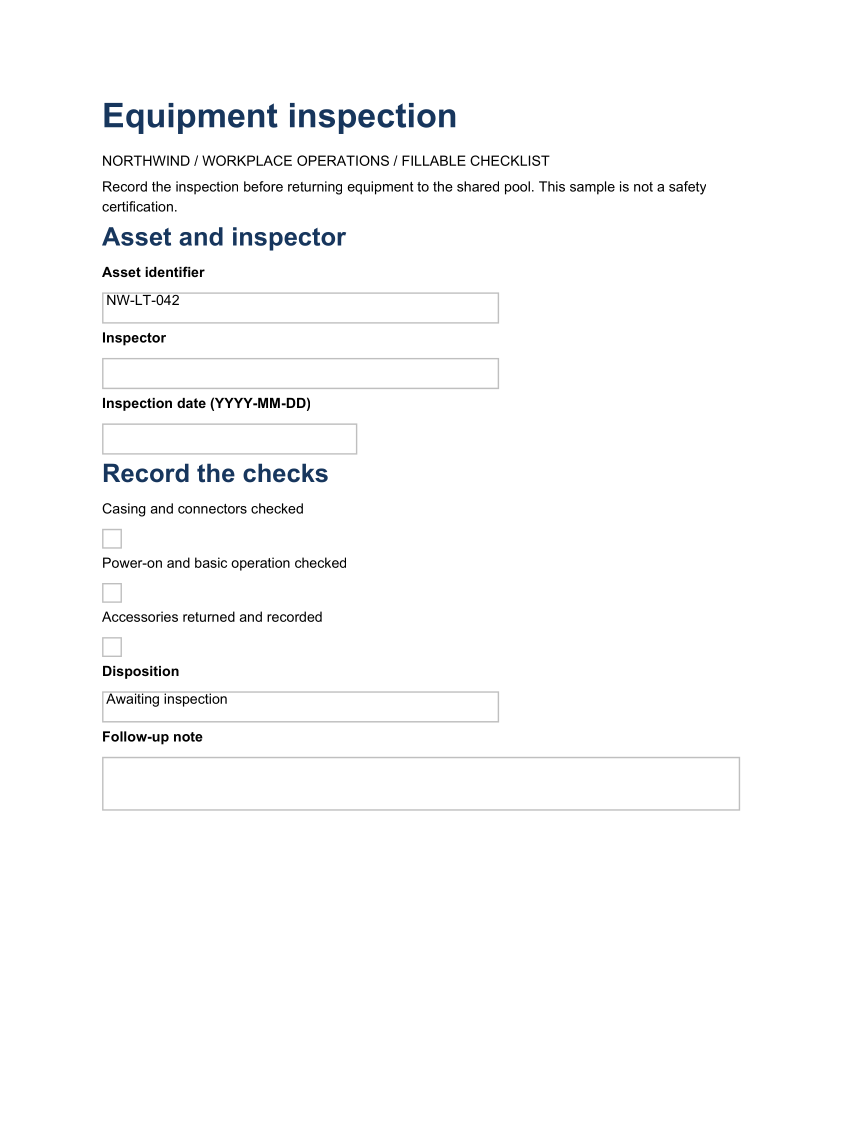
Collect a consistent inspection record in a PDF viewer while leaving the decision to the person performing the checks.
Opens the generated download in a local browser tool. The C# example below creates the document.
- Start with
- Inspection labels, a sample asset identifier and allowed dispositions
- Generate
How it works
Lay out the record
Group asset details, inspection checks and follow-up information under readable headings.
Add named fields
Use TextField, CheckBox and ChoiceField so applications can identify values by stable field names.
Set a conservative initial state
Leave checkboxes unchecked and the disposition at Awaiting inspection until a person records the result.
The C# source
The example below shows the document API and layout used for this report. Follow the PDF guide for package setup in your own project.
using OfficeIMO.Pdf;

namespace OfficeIMO.Examples.Showcase.Workflows;

/// <summary>Creates an inspection form, fills a completed copy, and saves a permanent record.</summary>
internal static class EquipmentInspection {
    internal static void Create(string folder) {
        OfficeColor muted = OfficeTheme.Default.Palette.TextMuted;
        PdfDocument template = PdfDocument.Create(pdf => pdf.Content(content => {
            content.Title("Equipment inspection")
                .AddParagraph(p => p.AddText("Northwind · Workplace operations · Fillable checklist").SetFontSize(OfficeLength.Points(9)), color: muted)
                .AddParagraph(p => p.AddText("Record the inspection before returning equipment to the shared pool. This sample is not a safety certification."))
                .H2("Asset and inspector");
            Field(content, "Asset identifier", c => c.TextField("asset-id", width: OfficeLength.Points(280), value: "NW-LT-042", style: Named("Asset identifier")));
            Field(content, "Inspector", c => c.TextField("inspector", width: OfficeLength.Points(280), style: Named("Inspector")));
            Field(content, "Inspection date (YYYY-MM-DD)", c => c.TextField("inspection-date", width: OfficeLength.Points(180), style: Named("Inspection date")));
            content.H2("Record the checks");
            Check(content, "casing-checked", "Casing and connectors checked");
            Check(content, "operation-checked", "Power-on and basic operation checked");
            Check(content, "accessories-checked", "Accessories returned and recorded");
            Field(content, "Disposition", c => c.ChoiceField("disposition", new[] { "Awaiting inspection", "Return to pool", "Repair required", "Retire from use" },
                value: "Awaiting inspection", width: OfficeLength.Points(280), style: Named("Disposition")));
            Field(content, "Follow-up note", c => c.TextField("follow-up", width: OfficeLength.Points(450), height: OfficeLength.Points(48), style: Named("Follow-up note", multiline: true)));
        }), new PdfCreateOptions { DefaultFontSize = OfficeLength.Points(10), PageSetup = { Footer = { Show = true } } })
            .Meta(title: "Equipment inspection", author: "OfficeIMO");
        template.Save(Path.Combine(folder, "example.pdf"));

        PdfDocument completed = template.Forms.Fill(new Dictionary<string, string> {
            ["inspector"] = "Marta Nowak",
            ["inspection-date"] = "2026-09-17",
            ["casing-checked"] = "Yes",
            ["operation-checked"] = "Yes",
            ["accessories-checked"] = "Yes",
            ["disposition"] = "Return to pool",
            ["follow-up"] = "All accessories returned. Ready for the next booking."
        });
        completed.Save(Path.Combine(folder, "completed.pdf"));
        completed.Forms.Flatten().Save(Path.Combine(folder, "record.pdf"));
    }

    // A label sits close to its own field and well clear of the field above it.
    internal static void Field(PdfContentBuilder content, string label, System.Action<PdfContentBuilder> field) {
        content.AddParagraph(p => p.AddText(label).SetBold(), style: new PdfParagraphStyle { SpacingBefore = OfficeLength.Points(10), SpacingAfter = OfficeLength.Points(3), KeepWithNext = true });
        field(content);
    }

    internal static void Check(PdfContentBuilder content, string name, string label) =>
        content.Row(row => row.Style(new PdfRowStyle { SpacingBefore = OfficeLength.Points(6), SpacingAfter = OfficeLength.Points(2) }).Gap(OfficeLength.Points(8))
            .FixedColumn(OfficeLength.Points(16), column => column.CheckBox(name, spacingAfter: OfficeLength.Points(0), style: Named(label)))
            .RelativeColumn(column => column.AddParagraph(p => p.AddText(label), style: new PdfParagraphStyle { SpacingBefore = OfficeLength.Points(3), SpacingAfter = OfficeLength.Points(0) })));

    internal static PdfFormFieldStyle Named(string label, bool multiline = false) =>
        new PdfFormFieldStyle { AlternateName = label, IsMultiline = multiline };
}
API used in this example
Use this in your project
Replace the fields with your actual inspection process. Stable field names make later form extraction or filling easier.
The PDF guide explains package setup and related document APIs.
Documents and scope
What the preview shows
The linked C# example generates this file. The page images are rendered from the downloadable PDF with Poppler. Interactive structures are inspected separately from the static preview.
What to keep in mind
This sample is not a safety certification. The PNG is a static preview; use a PDF viewer that supports AcroForm fields to complete the form.