PDF · C# walkthrough
PDF reading list with clickable resources
Share a reading list that explains why each destination matters and remains useful when printed.
Opens the generated download in a local browser tool. The C# example below creates the document.
- Start with
- Resource names, destinations and usage notes
- Generate
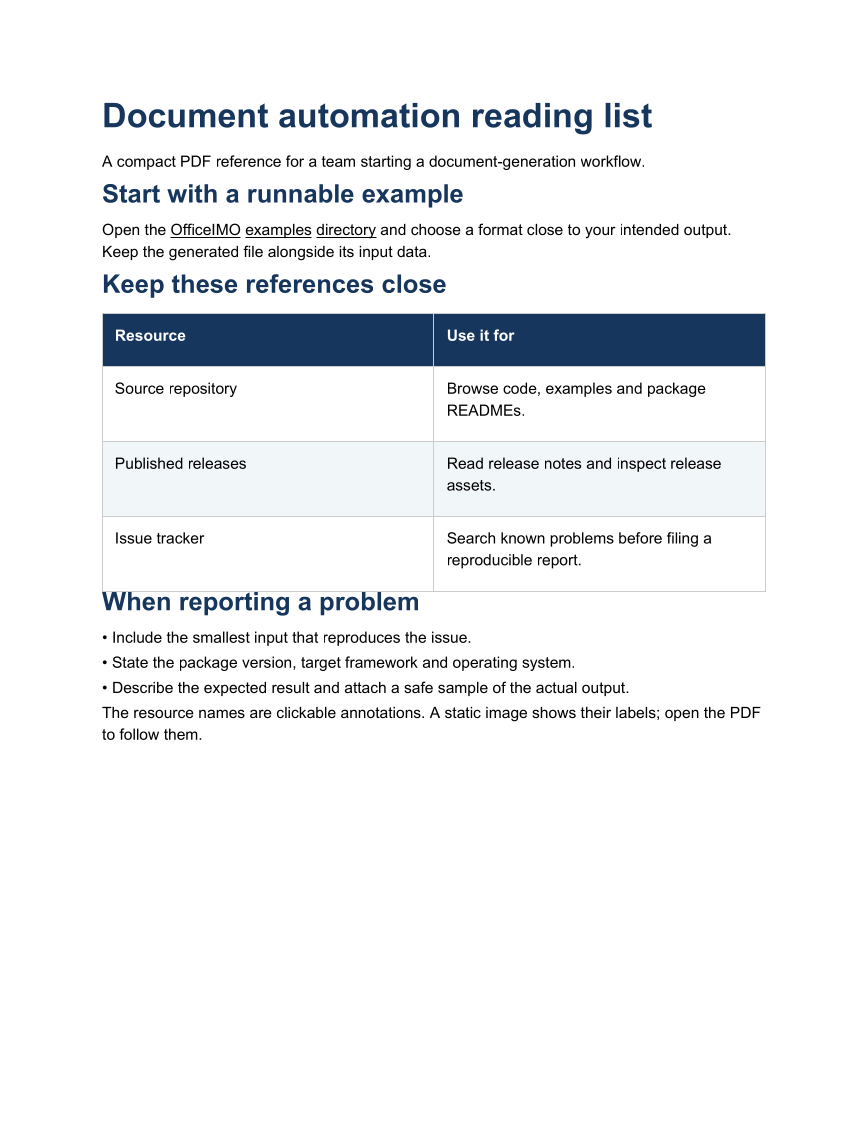
How it works
Use descriptive link labels
Add a paragraph link with a name that tells readers what they will open.
Attach links to table cells
Keep the resource descriptions in a table and map selected cells to their URI targets with TableWithLinks.
Include a reporting checklist
Explain which input, version and expected result a team should collect when reporting a problem.
The C# source
The example below shows the document API and layout used for this report. Follow the PDF guide for package setup in your own project.
using OfficeIMO.Pdf;

namespace OfficeIMO.Examples.Showcase.Workflows;

/// <summary>Builds a PDF reading list with descriptive paragraph and table hyperlinks.</summary>
internal static class LinkedResourceGuide {
    internal static void Create(string folder) {
        string repository = "https://github.com/EvotecIT/OfficeIMO";
        PdfTableCell[][] rows = {
            new[] { PdfTableCell.TextCell("Resource"), PdfTableCell.TextCell("Use it for") },
            new[] { PdfTableCell.TextCell("Source repository", repository), PdfTableCell.TextCell("Browse code, examples and package READMEs.") },
            new[] { PdfTableCell.TextCell("Published releases", repository + "/releases"), PdfTableCell.TextCell("Read release notes and inspect release assets.") },
            new[] { PdfTableCell.TextCell("Issue tracker", repository + "/issues"), PdfTableCell.TextCell("Search known problems before filing a reproducible report.") }
        };
        PdfDocument.Create(pdf => pdf.Content(content => content
            .Title("Document automation reading list")
            .Subtitle("A compact PDF reference for a team starting a document-generation workflow.")
            .H2("Start with a runnable example")
            .AddParagraph(p => {
                p.AddText("Open the ");
                p.AddLink("OfficeIMO examples directory", repository + "/tree/master/OfficeIMO.Examples");
                p.AddText(" and choose a format close to your intended output. Keep the generated file alongside its input data.");
            })
            .H2("Keep these references close")
            .AddTable(rows)
            .H2("When reporting a problem")
            .AddList(new[] {
                "Include the smallest input that reproduces the issue.",
                "State the package version, target framework and operating system.",
                "Describe the expected result and attach a safe sample of the actual output."
            })
            .AddParagraph(p => p.AddText("The resource names are clickable annotations. A static image shows their labels; open the PDF to follow them."))),
            new PdfCreateOptions { PageSetup = { Footer = { Show = true } } })
            .Meta(title: "Document automation reading list", author: "OfficeIMO")
            .Save(Path.Combine(folder, "example.pdf"));
    }
}
API used in this example
Use this in your project
Replace the links with your team's approved resources and verify their destinations when publishing the guide.
The PDF guide explains package setup and related document APIs.
Documents and scope
What the preview shows
The linked C# example generates this file. The page images are rendered from the downloadable PDF with Poppler. Interactive structures are inspected separately from the static preview.
What to keep in mind
The PDF contains external link annotations. The image shows their labels and layout; it does not demonstrate navigation or guarantee future availability of external pages.