Project · C# walkthrough
Parallel dependency network
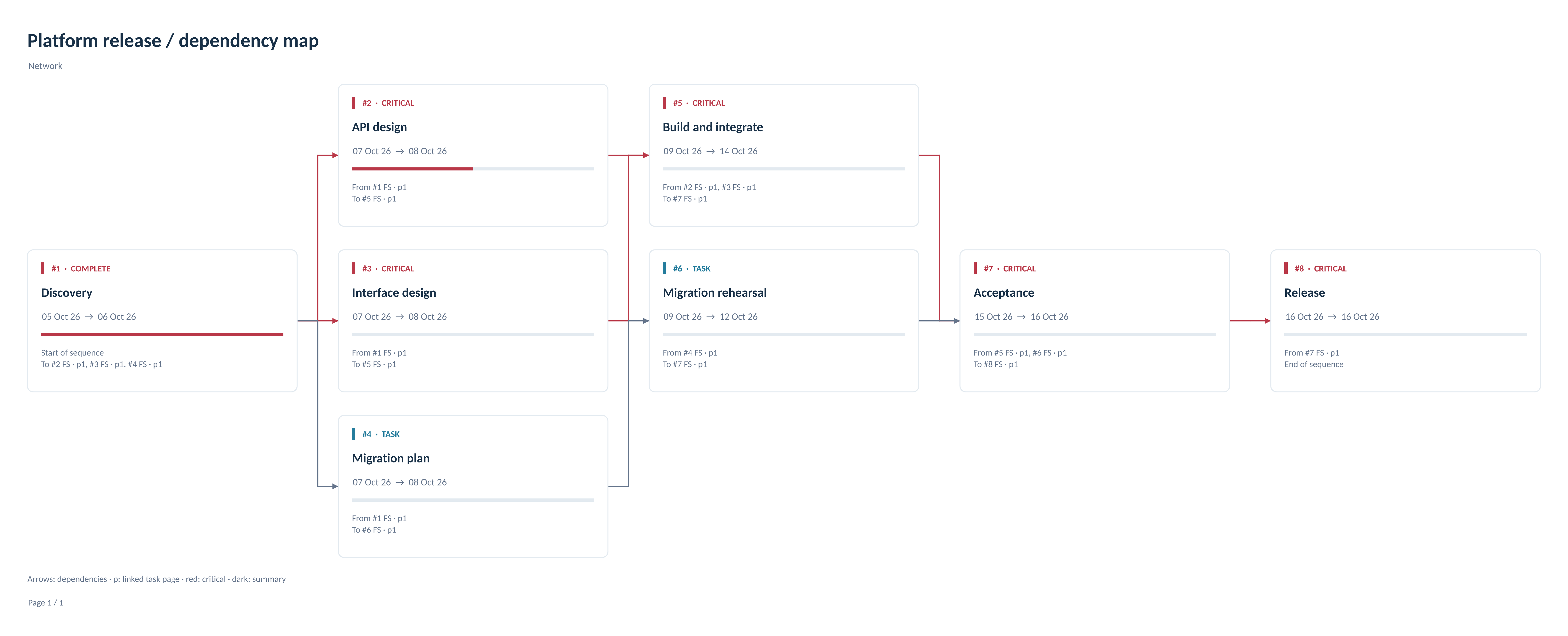
Explain which work can proceed in parallel and which tasks must join before a release can move forward. The same task model supplies the dates, critical status, and diagram references.
Opens the generated download in a local browser tool. The C# example below creates the document.
- Start with
- A fork-and-join dependency graph
- Generate
- XML + PNG + SVG + PDF
How it works
Define parallel work
Add API design, interface design, and migration planning after discovery, then join the delivery paths before acceptance and release.
Calculate dependency stages
Calculate the schedule and create a dependency network. The Project renderer places stages in columns and parallel work in separate lanes.
Export a zoomable diagram
Use a 300-DPI PNG for fixed-size sharing, SVG for vector zoom, and PDF for review or printing. Save the calculated project as XML too.
The C# source
The example below shows the document API and layout used for this report. Follow the Project guide for package setup in your own project.
using OfficeIMO.Drawing;
using OfficeIMO.Project;
using OfficeIMO.Workflows;

namespace OfficeIMO.Examples.Showcase.Workflows;

/// <summary>Shows parallel work, dependency joins, and task status in a network report.</summary>
internal static class ProjectDependencyNetwork {
    internal static void Create(string folder) {
        using var project = ProjectDocument.Create();
        project.Name = "Platform release / dependency map";
        project.Calendar = project.Calendars.AddStandardWorkingWeek();
        project.Settings.StartDate = new DateTime(2026, 10, 5, 8, 0, 0);
        string[] names = { "Discovery", "API design", "Interface design", "Migration plan", "Build and integrate", "Migration rehearsal", "Acceptance", "Release" };
        var tasks = names.Select((name, index) => {
            var task = project.Tasks.Add(name);
            task.Duration = ProjectDuration.WorkingDays(index == 7 ? 0 : index == 4 ? 4 : 2);
            return task;
        }).ToArray();
        foreach (var (from, to) in new[] { (0, 1), (0, 2), (0, 3), (1, 4), (2, 4), (3, 5), (4, 6), (5, 6), (6, 7) })
            project.Dependencies.Add(tasks[from], tasks[to]);
        tasks[0].ActualStart = project.Settings.StartDate;
        tasks[0].ActualDuration = ProjectDuration.WorkingHours(16);
        tasks[0].RemainingDuration = ProjectDuration.WorkingHours(0);
        tasks[1].ActualStart = new DateTime(2026, 10, 7, 8, 0, 0);
        tasks[1].ActualDuration = ProjectDuration.WorkingHours(8);
        tasks[1].RemainingDuration = ProjectDuration.WorkingHours(8);

        var schedule = project.CalculateSchedule(new ProjectScheduleOptions { CalculateAssignments = true });
        schedule.Report.ThrowIfErrors();
        var view = project.CreateView(schedule, new ProjectViewOptions {
            Kind = ProjectViewKind.Network, NetworkLayout = ProjectNetworkLayout.Dependency,
            PageWidth = 1600, PageHeight = 900
        });
        project.ApplySchedule(schedule);
        project.Save(Path.Combine(folder, "example.xml"));

        string fonts = Path.Combine(AppContext.BaseDirectory, "Assets", "Fonts");
        var faces = new OfficeFontFaceCollection()
            .Add("Arial", File.ReadAllBytes(Path.Combine(fonts, "Carlito-Regular.ttf")))
            .Add("Arial", File.ReadAllBytes(Path.Combine(fonts, "Carlito-Bold.ttf")), OfficeFontStyle.Bold);
        var typography = new OfficeRenderingProfile("network-report", faces, OfficeManagedTextShapingProvider.Instance);
        var images = new ProjectImageExportOptions().UseRenderingProfile(typography).UseQuality(OfficeImageExportQuality.Print);
        File.WriteAllBytes(Path.Combine(folder, "preview.png"), ProjectReportWorkflow.ExportImages(view, options: images).Single().Bytes);
        File.WriteAllText(Path.Combine(folder, "preview.svg"), ProjectReportWorkflow.ToSvg(view, typography).Single());
        File.WriteAllBytes(Path.Combine(folder, "preview.pdf"), ProjectReportWorkflow.ToPdf(view, typography: typography));
    }
}
API used in this example
Use this in your project
Change the dependency pairs to match your workflow. For larger graphs, consume every exported page instead of Single(); continuation references identify the linked task page.
The Project guide explains package setup and related document APIs.
Documents and scope
What the preview shows
The complete C# example generates these exports. The runner reopens and validates the Project XML and any Office documents, and verifies the PDF page count. The preview is the actual 300-DPI PNG export.
What to keep in mind
Calculated report views do not reconstruct saved native Project view styles. Charts in Word and PowerPoint are images; accompanying data tables remain editable. PNG has a fixed pixel resolution; use SVG for vector zoom.