Visio · C# walkthrough
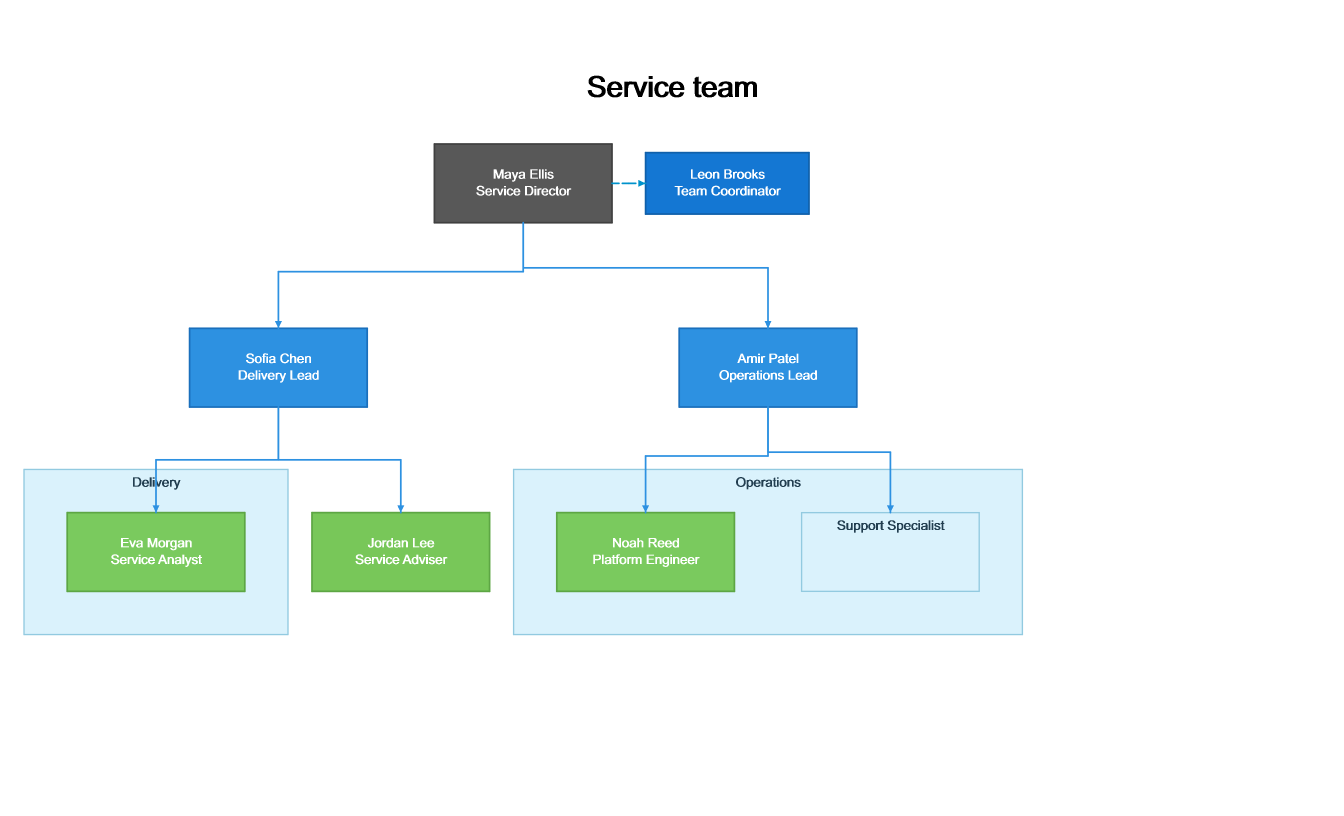
Organisation chart with team vacancies
Show both the reporting structure and the roles that still need an owner without drawing every box and connector by hand.
- Start with
- People, roles, reporting relationships and open positions
- Generate
- VSDX + SVG
How it works
Create the reporting hierarchy
Start with a root, add managers and attach positions using stable parent identifiers.
Add useful distinctions
Use Assistant, TeamBand, Vacancy and External to represent different relationships explicitly.
Validate and export
Save the VSDX, reopen it for validation and create PNG and SVG views through the native image export API.
The C# source
The example below shows the document API and layout used for this report. Follow the Visio guide for package setup in your own project.
using OfficeIMO.Visio;
using OfficeIMO.Visio.Diagrams;

namespace OfficeIMO.Examples.Showcase.Workflows;

/// <summary>Builds an organisation chart with team bands, an assistant, a vacancy and an external adviser.</summary>
internal static class TeamOrganisation {
    internal static void Create(string folder) {
        var theme = VisioStyleTheme.Modern();
        theme.Container.TextStyle!.VerticalAlignment = VisioTextVerticalAlignment.Top;
        theme.Container.TextStyle.TopMargin = 0.08;
        var document = VisioDocument.Create(Path.Combine(folder, "example.vsdx"))
            .OrgChartDiagram("Service team", org => org
                .Theme(theme).Title("Service team").TeamBandPadding(0.45).Spacing(0.7, 1.1)
                .Root("director", "Maya Ellis", "Service Director")
                .Assistant("coordinator", "Leon Brooks", "Team Coordinator", "director")
                .Manager("delivery", "Sofia Chen", "Delivery Lead", "director")
                .Manager("operations", "Amir Patel", "Operations Lead", "director")
                .TeamBand("delivery-team", "Delivery", "delivery")
                .TeamBand("operations-team", "Operations", "operations")
                .Position("analyst", "Eva Morgan", "Service Analyst", "delivery", "delivery-team")
                .Position("engineer", "Noah Reed", "Platform Engineer", "operations", "operations-team")
                .Vacancy("support", "Support Specialist", "operations", "operations-team")
                .External("adviser", "Jordan Lee", "Service Adviser", "delivery"));
        document.Save();
    }
}
API used in this example
Use this in your project
Replace the fictional people and roles with your organisation data. Review dotted or external relationships with the team before publishing.
The Visio guide explains package setup and related document APIs.
Documents and scope
What the preview shows
The linked C# example generates this file. The runner reloads the VSDX, checks the authoring model and renders the saved diagram to PNG and SVG.
What to keep in mind
The names and structure are fictional. Image evidence comes from OfficeIMO's renderer and does not establish identical layout in desktop Visio.