Word · C# walkthrough
Project charter
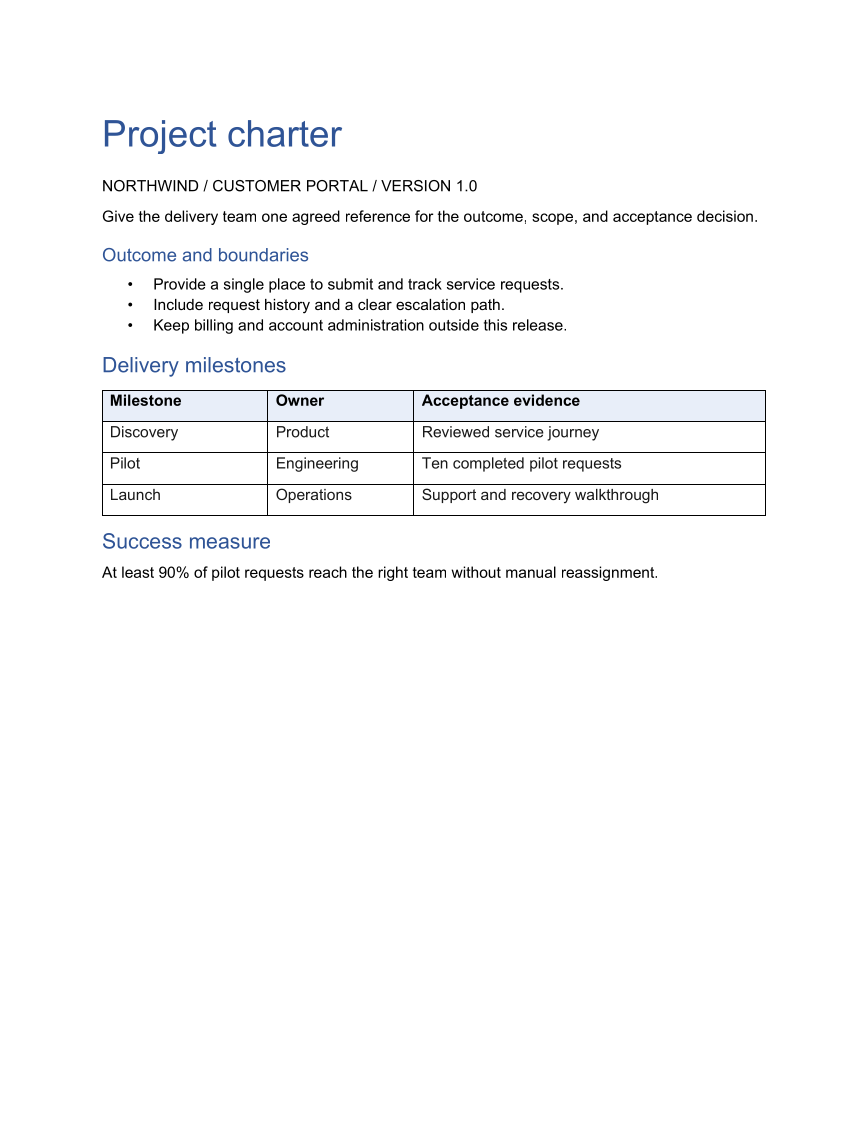
Start a project with a shared definition of success. This charter keeps scope, ownership, and acceptance evidence together so the delivery team can update one document as the plan changes.
Opens the generated download in a local browser tool. The C# example below creates the document.
- Start with
- Project scope and milestone data
- Generate
- DOCX + PDF
How it works
Define the document
Set the document title and default font, then use Word heading styles for a navigable structure.
Describe the boundary
Add a bulleted scope list and a bookmark on the scope heading. The bookmark gives later code a stable place to find that section.
Turn milestones into a table
Populate rows from a two-dimensional array, emphasize the header, and keep the acceptance evidence beside its owner.
The C# source
The example below shows the document API and layout used for this report. Follow the Word guide for package setup in your own project.
using System.IO;
using OfficeIMO.Word;

namespace OfficeIMO.Examples.Showcase.Workflows;

/// <summary>Creates an editable project charter with scope, milestones, and named owners.</summary>
internal static class ProjectCharter {
    internal static void Create(string folder) {
        using WordDocument document = WordDocument.Create(Path.Combine(folder, "example.docx"));
        document.Settings.FontSize = global::OfficeIMO.OfficeLength.Points(11);
        document.Properties.Title = "Project charter";
        document.AddParagraph("Project charter").Style = WordParagraphStyles.Heading1;
        document.AddParagraph("NORTHWIND / CUSTOMER PORTAL / VERSION 1.0");
        document.AddParagraph("Give the delivery team one agreed reference for the outcome, scope, and acceptance decision.");

        document.AddParagraph("Outcome and boundaries").AddBookmark("Scope").Paragraph.Style = WordParagraphStyles.Heading2;
        WordList scope = document.AddList(WordListStyle.Bulleted);
        scope.AddItem("Provide a single place to submit and track service requests.");
        scope.AddItem("Include request history and a clear escalation path.");
        scope.AddItem("Keep billing and account administration outside this release.");

        document.AddParagraph("Delivery milestones").Style = WordParagraphStyles.Heading2;
        string[,] values = {
            { "Milestone", "Owner", "Acceptance evidence" },
            { "Discovery", "Product", "Reviewed service journey" },
            { "Pilot", "Engineering", "Ten completed pilot requests" },
            { "Launch", "Operations", "Support and recovery walkthrough" }
        };
        WordTable table = document.AddTable(4, 3, WordTableStyle.TableGrid);
        for (int row = 0; row < 4; row++) {
            for (int column = 0; column < 3; column++) {
                var paragraph = table.Rows[row].Cells[column].Paragraphs[0];
                paragraph.Text = values[row, column];
                paragraph.Bold = row == 0;
                if (row == 0) table.Rows[row].Cells[column].ShadingFillColor = OfficeColor.Parse("E8EEF8");
            }
        }
        document.AddParagraph("Success measure").Style = WordParagraphStyles.Heading2;
        document.AddParagraph("At least 90% of pilot requests reach the right team without manual reassignment.");
        foreach (WordParagraph paragraph in document.Paragraphs) {
            paragraph.FontSize = global::OfficeIMO.OfficeLength.Points(11);
            paragraph.LineSpacingAfter = global::OfficeIMO.OfficeLength.Points(7D);
            if (paragraph.Style == WordParagraphStyles.Heading1) {
                paragraph.FontSize = global::OfficeIMO.OfficeLength.Points(26);
                paragraph.Bold = true;
                paragraph.LineSpacingAfter = global::OfficeIMO.OfficeLength.Points(12D);
            } else if (paragraph.Style == WordParagraphStyles.Heading2) {
                paragraph.FontSize = global::OfficeIMO.OfficeLength.Points(15);
                paragraph.Bold = true;
                paragraph.LineSpacingBefore = global::OfficeIMO.OfficeLength.Points(12D);
                paragraph.LineSpacingAfter = global::OfficeIMO.OfficeLength.Points(6D);
            }
        }
        foreach (WordTable styledTable in document.Tables) {
            styledTable.SetWidthPercentage(100);
            styledTable.SetColumnWidthsPercentage(25, 22, 53);
            foreach (var row in styledTable.Rows) {
                foreach (var cell in row.Cells) {
                    cell.MarginTop = global::OfficeIMO.OfficeLength.Centimeters(0.1D);
                    cell.MarginBottom = global::OfficeIMO.OfficeLength.Centimeters(0.1D);
                    foreach (var paragraph in cell.Paragraphs) {
                        paragraph.FontSize = global::OfficeIMO.OfficeLength.Points(11);
                        paragraph.LineSpacingAfter = global::OfficeIMO.OfficeLength.Points(3D);
                    }
                }
            }
        }
        WorkflowFooter.Add(document, "Project charter");
        document.Save();
    }
}
API used in this example
Use this in your project
Replace the sample scope and milestone array with your project data. Keep the acceptance column specific: a named artifact or observable result is more useful than a general completion statement.
The Word guide explains package setup and related document APIs.
Documents and scope
What the preview shows
The linked C# example generates this file. The runner reopens and validates the DOCX, exports a PDF, and the preview renders that PDF.
What to keep in mind
The bookmark is part of the DOCX structure. The PDF preview demonstrates page layout; it does not expose Word bookmark navigation.